![wicked logo.webp]](https://help.wickedreports.com/hs-fs/hubfs/wicked%20logo.webp?height=40&name=wicked%20logo.webp)
On this Page
Introduction
This document explains how to run the Scale Chill Active Opportunities view in Wicked Reports to quickly identify campaigns that are candidates to Scale (increase budget) or Chill (keep budget steady). It covers locating or creating the view, customizing filters, and duplicating views for all high-spend channels. Lastly, it explains how to interpret the results and how Five Forces AI can automate the process.
Who this doc is for:
-
Users making Scale/Chill budget decisions
-
Teams who need alignment on budget strategy
-
Strategists (weekly routine) and Media Buyers (try-weekly)
What is the Scale/Chill/Kill Framework?
-
Scale = Increase budget on profitable campaigns
-
Chill = Keep budget steady on stable performers
-
Kill = Cut budget on unprofitable campaigns (unless they can be fixed)
This framework works with ROAS, CAC, or NCAC depending on your optimization preference.
How To Set Up Your Scale/Chill View:
Purpose: Quickly find campaigns that generate a positive return. If you’ve enabled Five Forces AI, this routine runs for you automatically every day.
- Find or Create the View
-
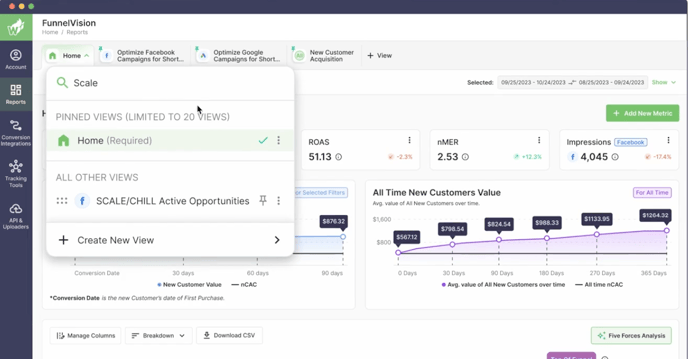
Go to your FunnelVision Report.
-
Check Pinned Views for Scale Chill Active Opportunities.
-
If not visible: click + View → Five Forces tab → Scale Chill Active Opportunities view.
-
Leave the default filters and click Create and Apply View.
-
-
Customize Filters
-
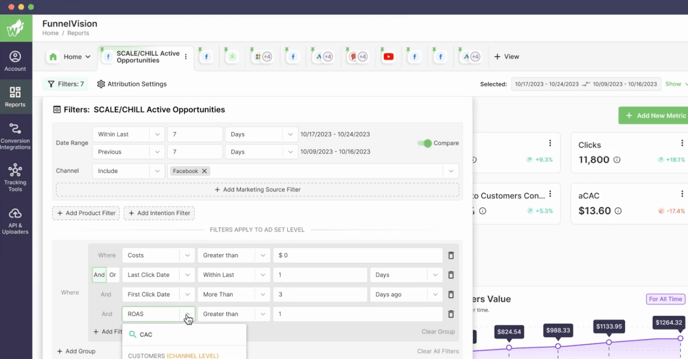
Decision #1: Choose your metric
This will adjust the FB campaigns will show up in your view, based on your brands goals.
-
Keep the default (e.g., ROAS > 1)
-
Or, switch to CAC/NCAC (e.g., CAC < 30).
-
-
Decision #2: Define your Chill Zone. (e.g., ROAS > 1)
This value will tell WR to put any FB campaign over this ROAS in the view for scale chill active analysis. -
Save your changes to apply.
-
-
Apply to Different Channels
-
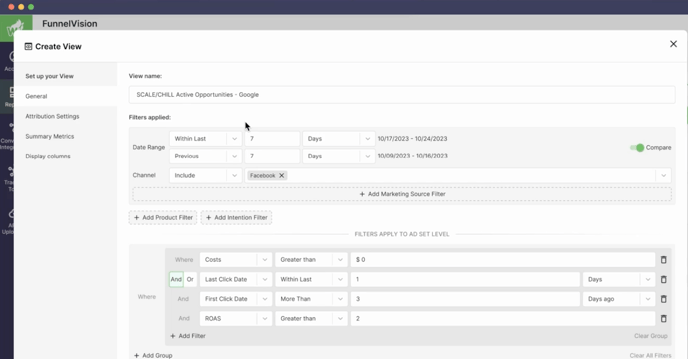
Rename your Meta view:
-
In your pinned views at the top of your screen, click on the ellipses.
- From the dropdown menu, press edit
- Edit the view name (e.g., Scale Chill Active Opportunities - Meta)
- Press Save and Apply View.
-
- Duplicate for other high-budget channels:
-
-
-
-
In your pinned views at the top of your screen, click on the ellipses
-
From the dropdown menu, press duplicate
- Edit the view name (e.g., Scale Chill Active Opportunities - Meta Copy -> Scale Chill Active Opportunities - Google)
- Now, go to the filters and update the channel (e.g. if you're creating a google view, update the channel to be google)
- Press Create and Apply View
-
-
Making Smart Scale/Chill Decisions
At the top of the view, you’ll see summary metrics like total ad spend and overall returns. Below that is the campaign list showing which campaigns fall into your Scale or Chill zones based on the filters you set.
- For ROAS users, campaigns above your Chill Zone threshold should have budgets increased, and campaigns inside the Chill Zone should be kept steady.
- For CAC or NCAC users, this logic flips - campaigns with lower costs land in the Scale Zone, and those within your target cost stay in the Chill Zone.
To understand why certain campaigns are succeeding, use the Diagnose and Improve training to review these five areas:
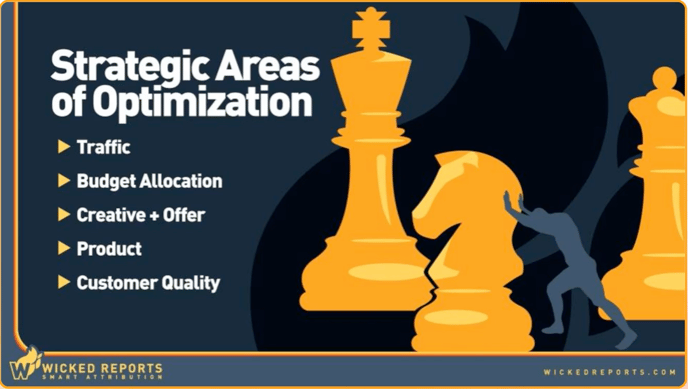
Identifying what’s driving results helps you make smarter, more sustainable scaling decisions. Use these insights to adjust budgets, refresh creative, or reallocate spend to maximize return.
Ultimately, the Scale Chill Active Opportunities view gives you quick, confident choices on where to scale and where to hold steady. Paired with Diagnose and Improve or Five Forces AI, it provides a balanced approach that blends speed with strategy so your ad spend grows intelligently over time.