![wicked logo.webp]](https://help.wickedreports.com/hs-fs/hubfs/wicked%20logo.webp?height=40&name=wicked%20logo.webp)
On This Page
- Filters
- Dimension Filters
- Metric Filters
- Match All vs. Match Any
- Saved Views
- How to Create a View
- What Gets Saved in a View
- Managing Saved Views
- Build Views Around the Decision You Need to Make
- Saving Changes
- Duplicating a View
- Save As View
- FAQ
Filters
Filters narrow the marketing activity included in the report.
You can use filters to focus on specific marketing dimensions or performance criteria, including channels, campaigns, UTMs, or metric thresholds.
Dimension Filters
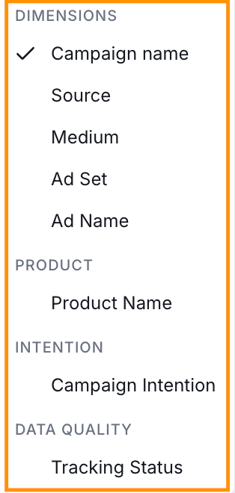
Dimension filters control which marketing activity is included in the report.
Available dimensions include:
- Campaign Name
- Source
- Medium
- Ad Set
- Ad Name
- Product Name
- Campaign Intention
- Tracking Status
You can combine multiple dimension filters to narrow the report.
For example:
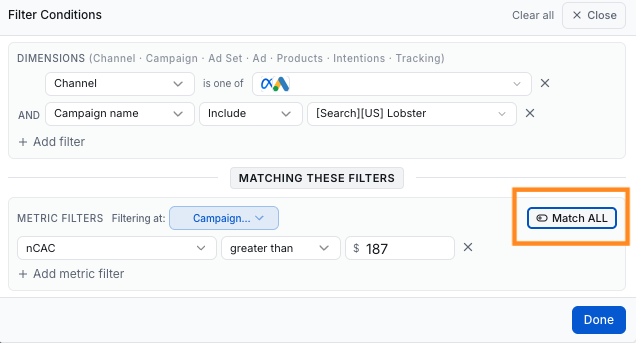
- Channel = Meta Ads
- Campaign Name = Include "[Search][US] Lobster"
You can also select multiple values within a filter. For example, you can include both Meta Ads and Google Ads in the same report.
Metric Filters
Metric filters narrow the report based on performance criteria instead of marketing dimensions.
For example, you could filter for:
nCAC greater than $187
Metric filters can also be applied at a selected reporting level, such as Campaign.
This can help answer questions such as:
- Which campaigns have nCAC above my target?
- Which campaigns have ROAS below my acceptable threshold?
- Which campaigns meet the performance criteria I want to investigate?
Dimension filters and metric filters can be used together to create a more specific analysis.
Important: Business Snapshot and Filters
Business Snapshot responds only to the selected date range.
Marketing filters, customer filters, campaign filters, UTMs, and other report filters do not change Business Snapshot.
This is intentional. Business Snapshot provides a consistent view of overall business performance while you investigate different subsets of marketing activity below it.
Marketing Performance and Attribution Breakdown respond to the applicable marketing and report filters.
Reset
Use Reset to remove report changes and return the report to its default configuration.
Match All vs. Match Any
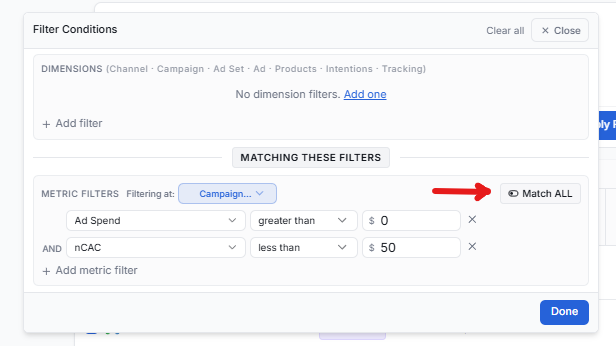
When multiple metric filter conditions are added, use Match All or Match Any to control how Wicked Reports evaluates them.
Match All requires the results to meet all of the metric filter conditions.
Use this when you want to progressively narrow the report, such as:
- Ad Spend > $100
- AND nCAC < $50
Match Any allows results that meet any of the selected conditions.
Use this when more than one condition should qualify activity for the report.
Saved Views
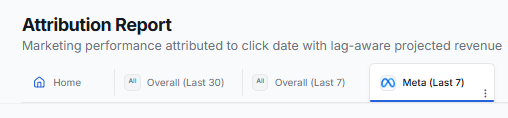
Saved Views let you preserve a configured Attribution Report so you can return to the same analysis later.
This makes Views useful for analyses you perform repeatedly.
How to Create a View
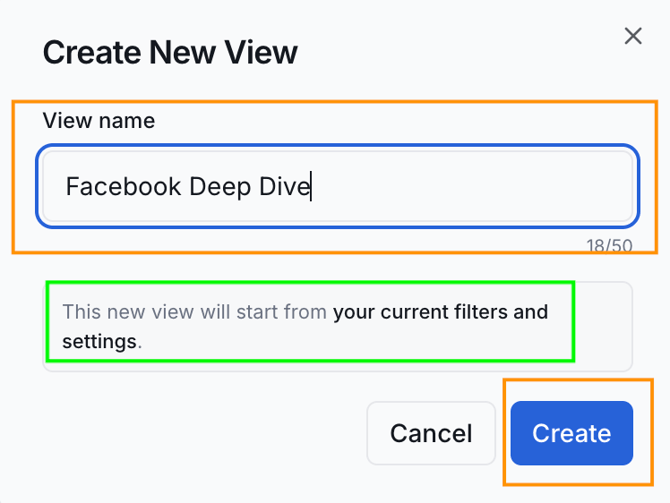
A View starts from the filters and settings currently configured in the Attribution Report.
You can first configure the report and then select Save As View, or select + View to create a new View from your current configuration.
Give the View a descriptive name based on the analysis you want to return to.
What Gets Saved in a View
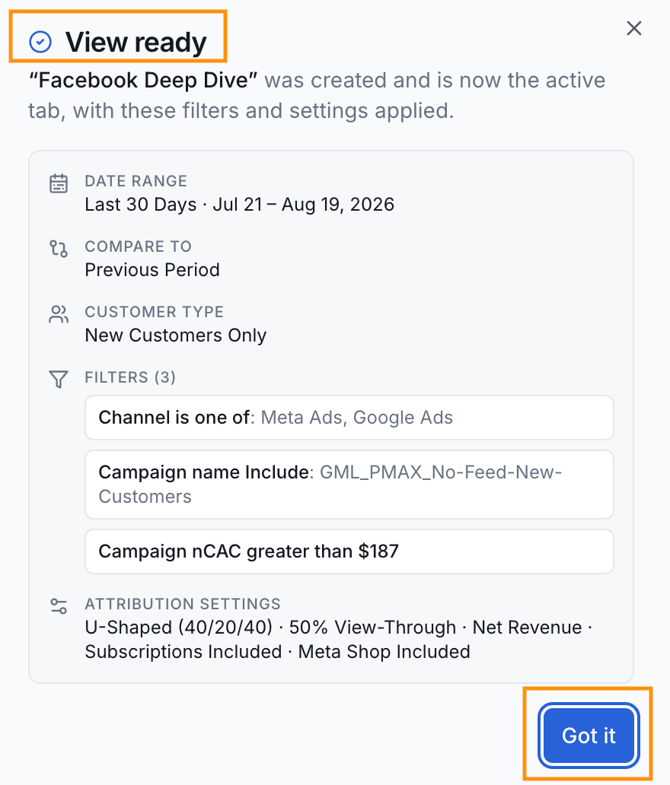
A Saved View can preserve the state of your report, including its configured filters, settings, metrics, columns, and other report selections.
Once the View is created, Wicked Reports displays the configuration applied to it, including its:
- Date Range
- Customer Type
- Filters
- Attribution Settings
Managing Saved Views
Views are associated with the account, so any View created can be used by other users on the same account. Each user can arrange the View tabs in the order that works best for them.
In Wicked 2.0, Views are account-based. This differs from Legacy, where Views were personal and had to be shared with other users.
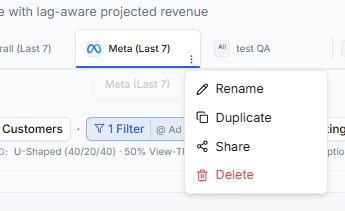
Use the View menu to:
- Rename
- Duplicate
- Share
- Delete
Build Views Around the Decision You Need to Make
The most useful Views are built around a recurring business question rather than simply a marketing channel.
For example, instead of creating a generic View called:
Meta Report
consider:
Meta — New Customer Acquisition
Instead of:
Campaign Performance
consider:
Campaigns Above Target nCAC
Other useful examples include:
- Cold Traffic Performance
- Scale Candidates
- High nCAC Campaigns
- Tracking Issues
- New Customer Acquisition
A focused View makes it easier to return to the same analysis and evaluate performance consistently over time.
Saving Changes
Changes made while working in a View do not need to become permanent.
You can explore different filters or settings and save them only when you want to update the View.
Duplicating a View
When you duplicate a View, Wicked Reports duplicates the saved state of that View, excluding unsaved changes currently being explored on the screen.
This ensures the original saved configuration remains the source for the duplicated View.
Save As View
You can also create a new View directly from Attribution Settings using Save As View.
This is useful when you create an attribution configuration you want to preserve as a separate analysis.
FAQ
Why doesn’t Business Snapshot change when I apply filters?
Business Snapshot responds only to the selected date range. Marketing, customer, campaign, UTM, and other report filters do not change it. Marketing Performance and Attribution Breakdown do respond to applicable filters.
What is the difference between Match All and Match Any?
Match All requires results to meet all metric filter conditions. Match Any allows results that meet any of the selected conditions.
Can I filter by performance metrics such as nCAC or ROAS?
Yes. Metric filters can be used to narrow results based on performance criteria and can be applied at a selected reporting level, such as Campaign.
Can I save a report configuration?
Yes.
Saved Views allow you to preserve your Attribution Report configuration and return to it later.
Views are useful for recurring analyses, different marketing teams, specific channels, customer acquisition analysis, or alternative attribution configurations.
How do I create a Saved View?
Configure the report first, then select Save As View, or select + View to create a new View from your current configuration.
Can other users on my account use my Saved View?
Yes. Views are associated with the account and can be used by other users on the same account. Each user can arrange the View tabs in the order most useful to them.
Can I rename, duplicate, share, or delete a View?
Yes. Those options are available from the View menu.
What happens if I change filters while working in a Saved View?
Changes do not automatically have to become permanent. You can explore different filters or settings and save them only when you want to update the View.
What happens when I duplicate a View?
Wicked Reports duplicates the saved state of the View, excluding unsaved changes currently being explored on the screen.
Can I use more than one filter at a time?
Yes. You can combine multiple dimension filters and metric filters to narrow your analysis. You can also select multiple values within supported filters, such as including both Meta Ads and Google Ads in the same report.