![wicked logo.webp]](https://help.wickedreports.com/hs-fs/hubfs/wicked%20logo.webp?height=40&name=wicked%20logo.webp)
Overview
Some settings affect only you, while others apply to everyone using the same Wicked Reports account. Because account-wide settings can change how reports are calculated or displayed for other users, make sure you understand the scope of a setting before changing it.
You can access Settings from Settings in the left navigation.
The Settings page includes five sections:
- User
- Company
- Attribution
- Performance Goals
- Display
Each section is saved independently. Your changes do not take effect until you select that section's Save button.
User
User Profile
User Profile contains information about you and your role within the company.
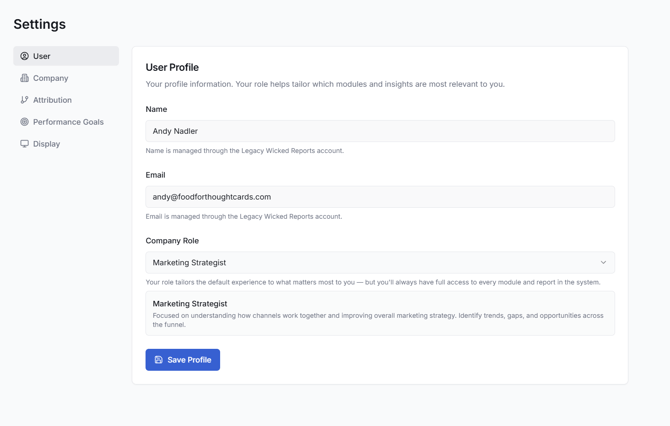
Name
Your Name is displayed as read-only.
Name is managed through your Legacy Wicked Reports account and cannot currently be changed from Wicked Reports 2.0.
What this affects: Your user identity within Wicked Reports.
Your Email is displayed as read-only.
Email is managed through your Legacy Wicked Reports account and cannot currently be changed from Wicked Reports 2.0.
What this affects: The email associated with your Wicked Reports user.
Company Role
Select the role that most closely represents how you use Wicked Reports.
Available roles are:
Media Buyer
Focused on optimizing campaigns and improving performance day-to-day. This role typically focuses on what's working, what's not, and where to adjust spend, creative, and targeting.
Marketing Strategist
Focused on understanding how channels work together and improving overall marketing strategy. This role typically looks for trends, gaps, and opportunities across the funnel.
Marketing Director
Focused on allocating budget and driving growth across channels. This role typically focuses on which channels to scale, reduce, or test next.
Founder/Owner
Focused on overall business growth and profitability. This role typically needs a high-level understanding of what marketing is driving revenue and where to invest.
Does My Role Restrict What I Can Access?
No.
Every role has full access to Wicked Reports modules and reports.
Company Role is intended to support future personalization of the Wicked Reports experience based on what's most relevant to your responsibilities. It does not currently restrict or change your access.
What this affects: Your role preference for future personalization of the Wicked Reports experience.
Select Save Profile after making a change.
Company
Company Settings
Company Settings controls your company identity, timezone, and optional white-label branding.
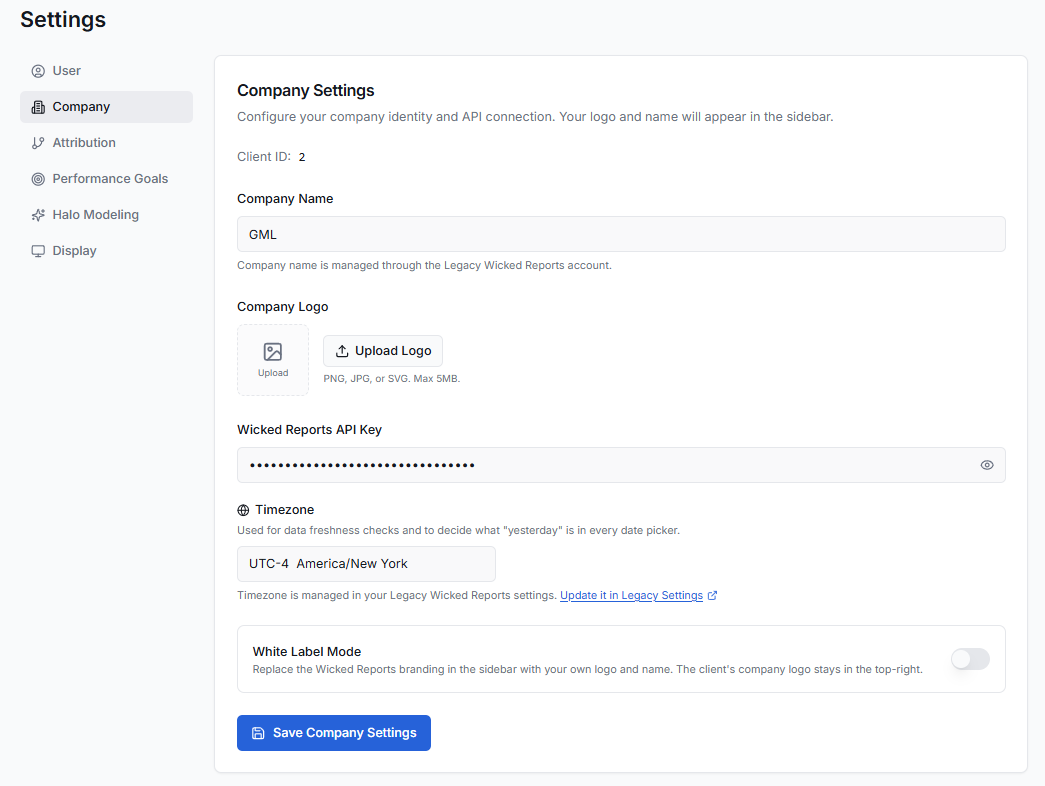
Changes made here are account-wide and apply to everyone using the same client account.
Client ID
Client ID identifies the Wicked Reports account you're currently viewing.
It is read-only and cannot be changed.
If you contact Wicked Reports Support about an account-specific issue, your Client ID is the fastest way to identify the correct account.
What this affects: Nothing in your reporting. It identifies your Wicked Reports client account.
Company Name
Your Company Name is displayed as read-only.
Company Name is managed through your Legacy Wicked Reports account and cannot currently be changed from Wicked Reports 2.0.
What this affects: Your company identity within Wicked Reports, including the company name displayed in the sidebar.
Company Logo
Upload your company logo to customize the company identity displayed in the top right of Wicked Reports.
Supported formats are:
- PNG
- JPG
- SVG
The maximum file size is 5 MB.
Select the logo tile or Upload Logo to add a logo. If a logo already exists, use Change Logo to replace it.
Select Remove to remove the current logo.
What this affects: Your company identity in the top right.
Wicked Reports API Key
Your Wicked Reports API Key is populated automatically from your Wicked Reports account.
The key is masked by default. Select the eye icon to temporarily reveal it.
You do not need to enter or manage the API key from this screen.
Timezone
Timezone determines the timezone Wicked Reports uses for date calculations and data freshness checks.
It is read-only and cannot be changed. Timezone must be updated in Legacy Wicked Reports
White Label Mode
White Label Mode lets you replace Wicked Reports branding in the sidebar with your own company logo and name.
Enable White Label Mode to activate your company's branding.
When enabled, additional Brand Customization options become available.
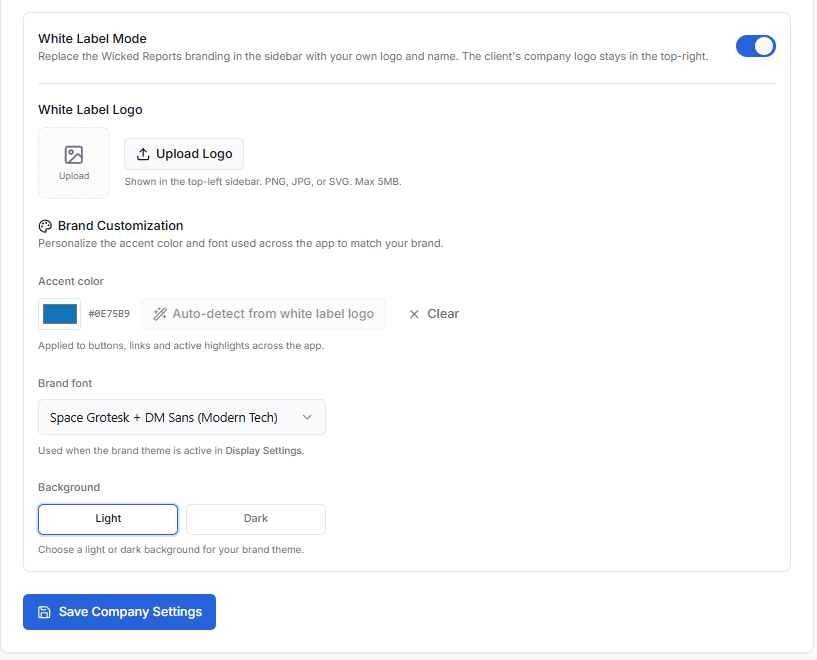
White Label Logo
Upload a logo to replace the Wicked Reports Logo in the top left of the Side bar. Any Logo uploaded in the Company Logo will still be display in the top right as the account identification.
Accent Color
Choose a custom accent color for your branded Wicked Reports experience.
The selected color is used for elements such as:
- Buttons
- Links
- Active highlights
You can select a color manually or use Auto-detect from the white label logo.
Auto-detect from Logo
When you've uploaded a White Label Logo, Wicked Reports can extract up to six colors from it.
Select Auto-detect from logo and choose one of the suggested color swatches.
Select Clear to remove your custom accent color.
What this affects: Accent colors when using your branded theme.
Brand Font
Select the font pairing you want associated with your company's branded experience.
The selected font is used when your brand theme is active in Display Settings.
What this affects: Typography used by your branded Display theme.
Background
Choose whether your branded theme uses a:
- Light background
- Dark background
What this affects: The background style of your branded Display theme.
Important: Brand Settings Are Shared
Your logo, timezone, White Label Mode, accent color, brand font, and background are all saved to the client account.
Changes made here affect everyone using that account.
Select Save Company Settings to apply your changes.
Attribution Settings
Attribution Settings define the default way Wicked Reports connects marketing interactions with purchases and distributes attribution credit.
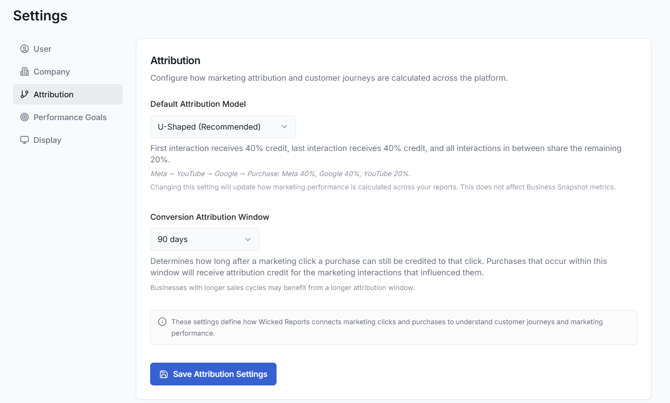
These settings establish your account's default attribution configuration.
Default Attribution Model
Your Default Attribution Model determines how conversion credit is distributed among the marketing interactions in a customer's journey.
Available models are:
First Click
First Click gives 100% of the conversion credit to the first marketing interaction in the journey.
For example:
Meta → Google → Purchase
Meta receives 100% of the credit.
Best understood as: Which marketing interaction originally introduced the customer?
Last Click
Last Click gives 100% of the conversion credit to the final marketing interaction before purchase.
For example:
Meta → Google → Purchase
Google receives 100% of the credit.
When Last Click is selected, an additional Last Click Window setting becomes available.
Last Click Window
Choose:
- 1 Day
- 7 Days
- 14 Days
- 28 Days
- 60 Days
The default is 7 days.
Only the last marketing click occurring within this period before the purchase can receive attribution credit.
U-Shaped (Recommended)
U-Shaped attribution gives greater weight to the beginning and end of the customer journey while still recognizing marketing interactions that occurred in between.
The:
- First interaction receives 40%.
- Last interaction receives 40%.
- Middle interactions share the remaining 20%.
For example:
Meta → YouTube → Google → Purchase
Credit is distributed as:
Meta: 40%
YouTube: 20%
Google: 40%
Linear
Linear attribution distributes conversion credit equally across all marketing interactions in the journey.
For example:
Meta → YouTube → Google → Purchase
Each channel receives approximately 33.3% of the credit.
What Does the Default Attribution Model Affect?
The Default Attribution Model establishes the starting attribution model for the Home view of the Attribution Report.
It does not override the attribution model saved within existing Saved Views.
You can also change the attribution model directly within the Attribution Report to explore your data using different assumptions.
If you change the model within the Home view of the Attribution Report and run the report, that selection becomes the model used when you return to the Home view.
Business Snapshot Is Different
Changing your attribution model does not change Business Snapshot metrics.
Business Snapshot represents your total business results and is attribution-independent.
What this affects: How attributed marketing performance is calculated. It does not change total business results shown in Business Snapshot.
Conversion Attribution Window
The Conversion Attribution Window determines how long after a marketing click a purchase can still receive attribution credit.
Available windows are:
- 30 Days
- 60 Days
- 90 Days
- 120 Days
- 180 Days
- 365 Days
The default is 90 Days.
For example, with a 90-day Conversion Attribution Window, an eligible purchase occurring within 90 days of the marketing click can still receive attribution credit for the marketing interactions that influenced it.
Businesses with longer customer consideration periods or sales cycles may benefit from a longer attribution window.
What this affects: How long Wicked Reports continues connecting marketing interactions with subsequent future purchases.
Select Save Attribution Settings to save your defaults.
Attribution Settings vs. Attribution Report Settings
Your account-level Attribution Settings establish your default attribution configuration.
The Attribution Report also includes its own Settings controls that let you analyze performance using different settings.
These can include:
- Attribution Model
- View-Through Confidence
- Revenue Type
- Recurring Subscription Revenue
- Meta Shop Purchases
This allows you to explore different attribution assumptions without changing your account's default settings.
Saved Views retain their own saved report configuration and are not automatically changed when you update the Default Attribution Model in Settings.
Performance Goals
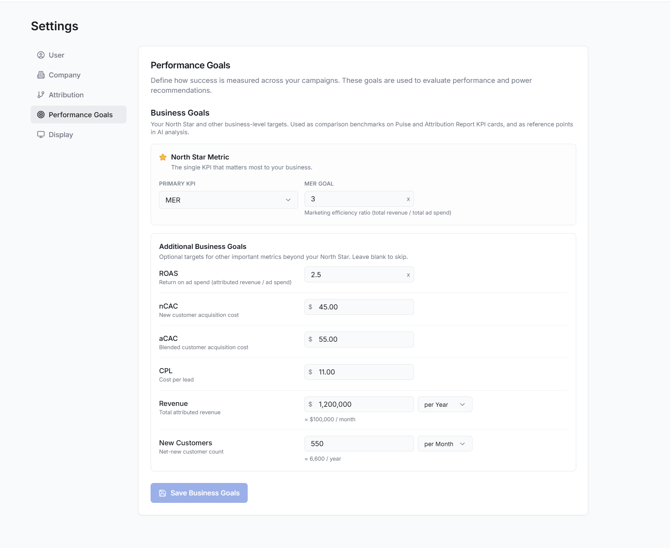
Business Goals
Business Goals let you define the performance benchmarks your company is working toward.
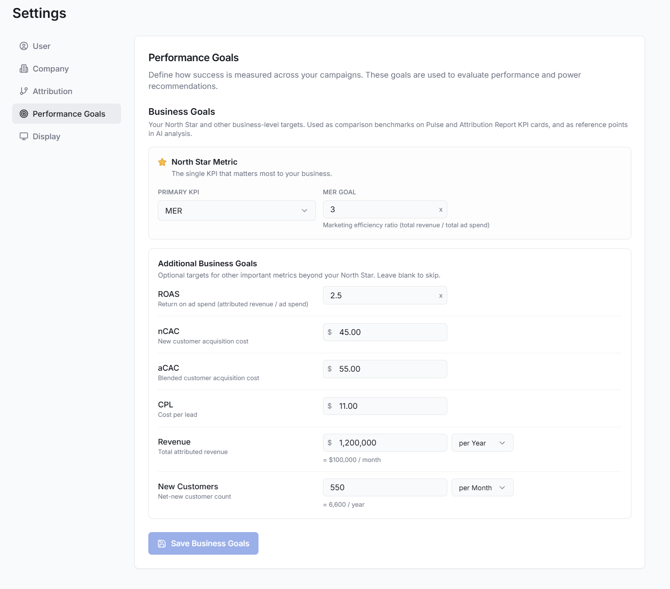
These goals are used as comparison benchmarks on Pulse and the Attribution Report and provide additional context for AI analysis.
Business Goals are account-wide. Everyone using the client account sees the same goals.
North Star Metric
Your North Star Metric is the primary metric your business uses to evaluate marketing performance.
Choose one of the following:
| Metric | Definition |
|---|---|
| MER | Marketing efficiency ratio: total revenue ÷ total ad spend |
| ROAS | Return on ad spend: attributed revenue ÷ ad spend |
| nCAC | New customer acquisition cost |
| aCAC | Blended customer acquisition cost |
| CPL | Cost per lead |
| Revenue | Total attributed revenue |
| New Customers | Net-new customer count |
After selecting your North Star Metric, enter the target you want your business to achieve.
A metric selected as your North Star is removed from Additional Business Goals so you don't enter the same goal twice.
What this affects: Your primary performance benchmark across supported reports and AI analysis.
Additional Business Goals
Additional Business Goals let you establish targets for other important metrics beyond your North Star.
These goals are optional.
Leave a metric blank if you don't want to establish a target for it.
What this affects: Additional performance benchmarks displayed throughout supported Wicked Reports experiences.
Entering Goal Values
Goal values are entered differently depending on the metric.
MER and ROAS
Enter these as multiples.
For example:
4.00x ROAS
Values support up to two decimal places.
nCAC, aCAC, and CPL
Enter these as currency amounts.
For example:
$75.00 nCAC
These values always display two decimal places using the account's selected currency symbol.
Revenue
Enter Revenue as a whole-number currency value.
Thousands separators are added automatically for readability.
For example:
$1,200,000
New Customers
Enter New Customers as a whole-number count.
For example:
5,000
Leaving a goal blank means no goal is established for that metric.
Monthly and Annual Goals
Revenue and New Customers are period-based totals, so you can define them as either:
- Monthly
- Annual
When you enter one, Wicked Reports displays the equivalent value for the other period.
For example, if you enter an annual Revenue goal of:
$1,200,000
the equivalent monthly goal is:
$100,000
Wicked Reports then adjusts that goal to match the date range you're analyzing.
How Goals Work With Different Date Ranges
Revenue and New Customer goals are automatically prorated to the dates included in your report.
This allows you to compare performance fairly whether you're looking at:
- 7 days
- A partial month
- One month
- Several months
- A custom date range
For each calendar month included in your selected range, Wicked Reports calculates the portion of the monthly target represented by the number of included days.
For example, suppose your monthly Revenue goal is $100,000 and you're viewing only part of a month.
Wicked Reports does not compare that partial period against the entire $100,000 monthly goal. Instead, it calculates the appropriate target for the days included in your report.
When you hover over the goal badge, the tooltip explains how the target was derived.
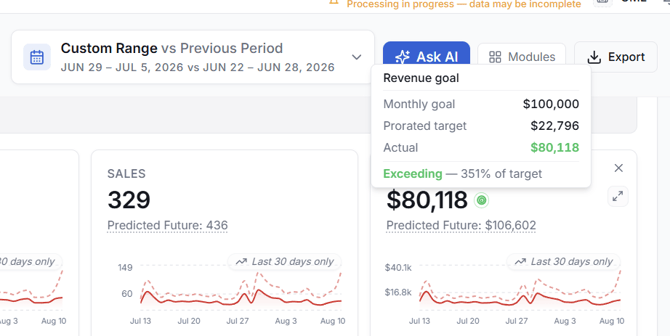
What this affects: The target used to evaluate Revenue and New Customer performance for the currently selected date range.
Where Business Goals Appear
Business Goals appear on supported KPI cards in:
- Pulse
- Attribution Report
They can appear in both Business Snapshot and Marketing Performance where the corresponding metric is available.
The goal is compared against the data currently being displayed.
For example, if your nCAC goal is $100 and you filter the Attribution Report to Meta, Meta's current nCAC is evaluated against that same $100 business goal.
Goals can therefore provide a consistent benchmark as you investigate different portions of your marketing.
Goals are also provided as context for AI analysis, allowing analyses to consider your company's own performance targets.
Understanding Goal Badges
When a KPI has a Business Goal, Wicked Reports displays an attainment badge.
The possible statuses are:
Exceeding — Performance is better than your target.
Meeting — Performance is within 2% of your target.
Below — Performance is more than 2% worse than your target.
The ±2% Meeting range is inclusive.
For example, with a 4.00x ROAS goal:
- Below 3.92x = Below
- 3.92x through 4.08x = Meeting
- Above 4.08x = Exceeding
For a $100 nCAC goal:
- Below $98 = Exceeding
- $98 through $102 = Meeting
- Above $102 = Below
Actual vs. Projected Performance
Business Goal badges always compare your target against Actual performance.
Projected values are never used to determine goal attainment.
North Star vs. Additional Goals
Your North Star Metric is identified with a star icon.
Additional Business Goals use a target icon.
If Wicked Reports doesn't have data for a metric during the selected date range, no attainment badge is shown.
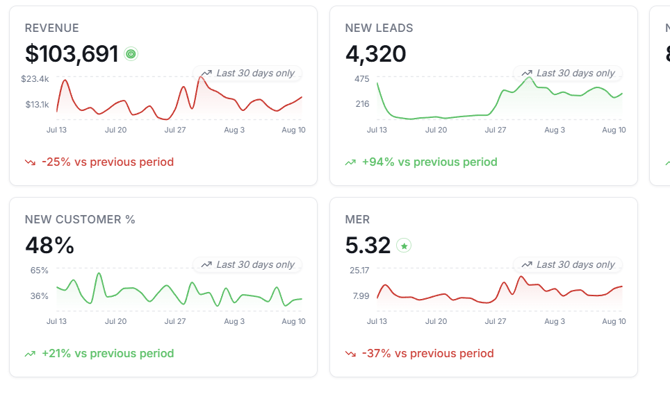
Select Save Business Goals after making changes.
Display
Display Settings
Display Settings control the visual appearance and currency used throughout Wicked Reports.
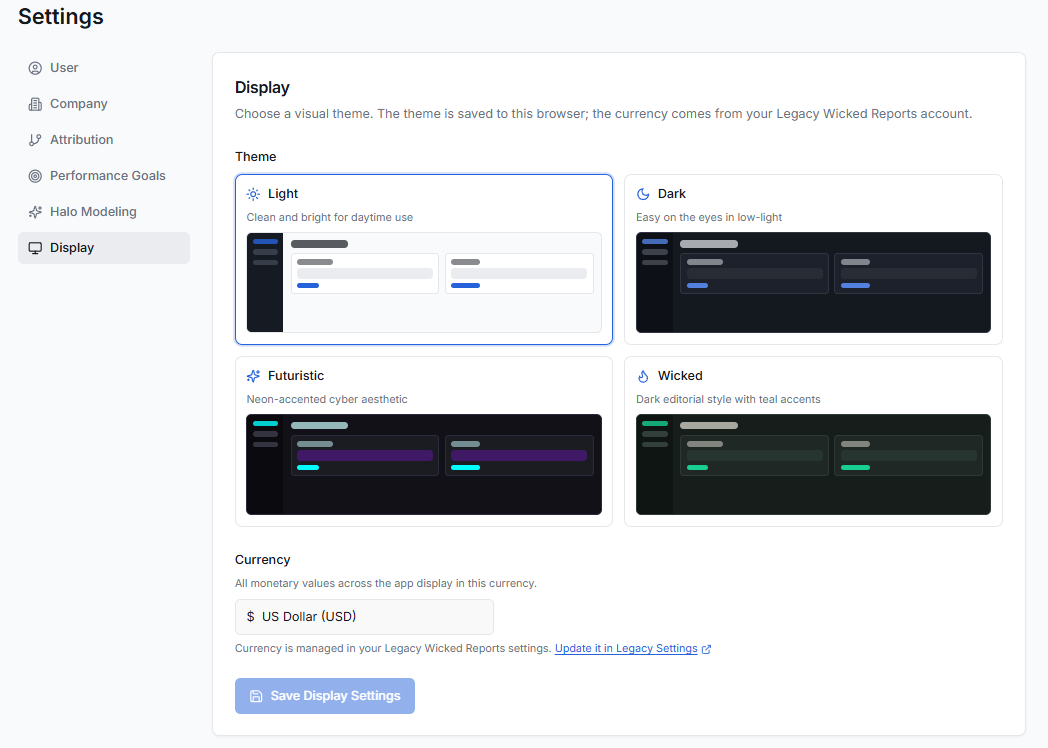
There is an important difference between these settings:
Theme applies only to your current browser/device.
Currency applies to all users on the account.
Theme
Choose the visual theme you prefer for Wicked Reports.
Available themes include:
Light
Clean and bright for daytime use.
Dark
Designed for comfortable use in lower-light environments.
Futuristic
A neon-accented cyber aesthetic.
Wicked
A dark editorial style with teal accents.
What this affects: How Wicked Reports looks in your current browser.
Changing your Theme does not change the experience for other users.
It also does not automatically carry over to another browser or device.
Branded Theme
If White Label Mode is enabled under Company Settings, the fourth theme option changes from Wicked to your company's name.
The branded theme uses the:
- Accent Color
- Brand Font
- Light or Dark Background
configured under Company Settings.
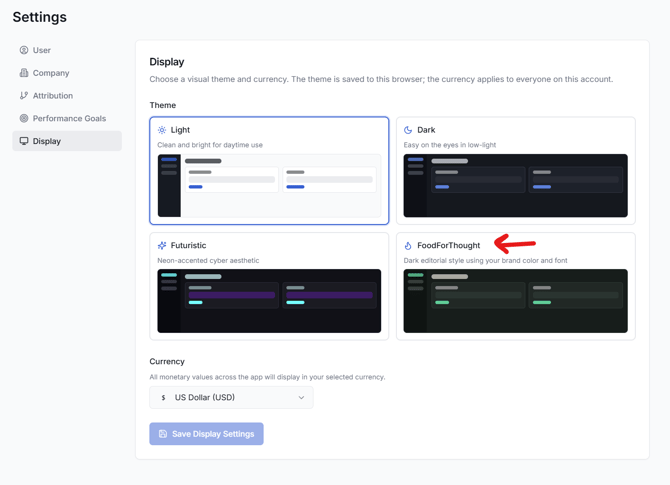
Because the Company branding configuration is account-wide but Theme selection is personal, your company can define a branded theme without requiring every user to use it.
Each user can choose whether to activate that theme in their own browser.
Currency
It is read-only and cannot be changed. Currency must be updated in Legacy Wicked Reports
Currency Does Not Convert Your Data
Select Save Display Settings to apply your changes.
The Save button remains disabled until you've made a change.
Which Settings Affect Me vs. My Account?
| Setting | Scope |
|---|---|
| Company Role | Your user profile |
| Theme | Current browser/device |
| Client ID | Account information — read-only |
| Company Name | Account-wide — managed in Legacy Wicked Reports |
| Company Logo | Account-wide |
| Wicked Reports API Key | Account information — read-only |
| Timezone | Account-wide— managed in Legacy Wicked Reports |
| White Label Mode | Account-wide |
| Accent Color | Account-wide |
| Brand Font | Account-wide |
| Brand Background | Account-wide |
| Default Attribution Model | Account-wide default |
| Conversion Attribution Window | Account-wide |
| North Star Metric | Account-wide |
| Additional Business Goals | Account-wide |
| Currency | Account-wide— managed in Legacy Wicked Reports |
When changing an account-wide setting, remember that your changes can affect the Wicked Reports experience for other users on the same client account.
Frequently Asked Questions
Why can't I edit my Name or Email?
Name and Email are currently managed through your Legacy Wicked Reports account.
They are displayed in Wicked Reports 2.0 for reference but cannot be edited from the User Profile page.
Use the Legacy Wicked Reports link in the sidebar when you need to manage information maintained in the legacy account.
Why can't I edit my Company Name?
Company Name is also managed through your Legacy Wicked Reports account.
It is displayed in Company Settings but is read-only in Wicked Reports 2.0.
Why is my Wicked Reports API Key greyed out?
Your API key is populated automatically from your Wicked Reports account.
You don't need to enter or change it from Wicked Reports 2.0.
The key is masked for security. Use the eye icon when you need to view it.
Does changing the Default Attribution Model change Business Snapshot?
No.
Business Snapshot represents total business results and is attribution-independent.
Changing the attribution model changes how Wicked Reports distributes attribution credit across marketing interactions. It does not change the underlying business results shown in Business Snapshot.
Will changing the Default Attribution Model change my Saved Views?
No.
Existing Attribution Report Saved Views retain the attribution model saved with that View.
Changing the Default Attribution Model in Settings establishes the account default used when starting from the Attribution Report's Home view. It does not overwrite existing Saved Views.
What does the ±2% Meeting range mean?
Wicked Reports allows a 2% range on either side of your Business Goal before performance is classified as Exceeding or Below.
For example, with a 4.00x ROAS target, anything from 3.92x through 4.08x is considered Meeting the goal.
The boundary values are included, so exactly 3.92x or exactly 4.08x is still Meeting.
For cost metrics such as nCAC, aCAC, and CPL, lower values are better. Wicked Reports automatically reverses the evaluation accordingly.
How does a monthly or annual goal work when I'm viewing only 7 days?
Wicked Reports prorates Revenue and New Customer goals to the actual dates you're viewing.
It doesn't compare seven days of performance against an entire monthly or annual target.
Instead, Wicked Reports determines how much of the monthly goal applies to the days included in your selected date range.
This also works across partial months and date ranges that span multiple months.
Hover over the goal badge to see how the target for your selected period was calculated.
What happens to my goals when I filter the Attribution Report?
Your business goal remains the same, but Wicked Reports compares it against the data currently displayed.
For example, if your nCAC goal is $100 and you filter the report to Meta, Meta's nCAC is evaluated against your $100 target.
This lets you use your business goals as consistent benchmarks while investigating different channels or other segments of your marketing.
Are projected results used to determine whether I'm meeting a goal?
No.
Goal attainment badges always use Actual performance.
Projected performance does not determine whether a KPI is Exceeding, Meeting, or Below its goal.
Why did another user's branding, timezone, goals, or currency change after I updated Settings?
Those are account-wide settings.
Changes to Company Settings, Attribution Settings, Performance Goals, and Currency are shared with other users of the same client account.
Theme is different. Your selected Theme applies only to your current browser/device.