![wicked logo.webp]](https://help.wickedreports.com/hs-fs/hubfs/wicked%20logo.webp?height=40&name=wicked%20logo.webp)
Overview
With Schedule Analysis, you can automatically receive AI-powered answers to your favorite Analyst questions without having to run them manually.
Choose the questions you want answered, how often you want to receive them, and whether the results should be delivered by email, Slack, or both.
For example, you could schedule a weekly marketing performance summary every Monday morning or receive daily answers to questions about your advertising performance.
You can create multiple scheduled analyses, each with its own questions, schedule, and delivery settings.
Before You Start
Before scheduling an analysis, you'll need to favorite at least one question in Analyst.
- Open Analyst from the left navigation.
- Find a question you want to schedule.
- Click the star icon to add it to your favorites.
- Repeat for any additional questions you want to include.
You can schedule both standard Analyst questions and custom questions you've created. Custom questions are identified by a CUSTOM label.
If you haven't favorited any questions, you'll see:
No favorites yet – Star questions on the Analyst page, then come back to schedule them.
Creating a Scheduled Analysis
Step 1: Open Schedule Analysis
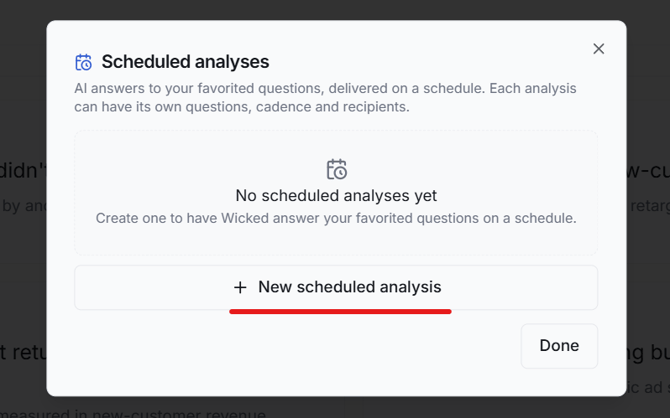
On the Analyst page, click Schedule Analysis at the top of the page.
Then click New scheduled analysis button.

Step 2: Name Your Analysis
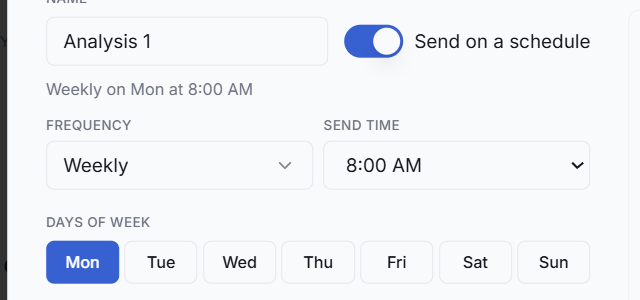
Enter a name that describes what you'll receive.
For example:
- Weekly Executive Summary
- Daily Meta Performance
- Monday Marketing Review
Each scheduled analysis requires a name. This makes it easier to identify and manage your schedules later.
Step 3: Choose When to Receive Your Analysis
Under Frequency, choose:
- Daily — Receive your analysis every day.
- Weekly — Receive your analysis on selected days of the week.
Weekly is selected by default, with Monday as the initial delivery day.
If you select Weekly, you can choose one or more days. For example, select Monday and Thursday to receive the same analysis twice a week.
Next, choose your Send time.
You can schedule delivery on the hour, from 12:00 AM through 11:00 PM. The default is 8:00 AM.
All delivery times use your account's reporting time zone, which is displayed beside the Send time setting.
Tip: Schedule after daily data processing
We recommend scheduling your analyses for 8:00 AM or later in your account's reporting time zone.
If you select an earlier time, you'll see a warning that your analysis may be delivered before daily data processing is complete. This could affect how current the data is when your questions are answered.
Step 4: Choose How to Receive Your Answers
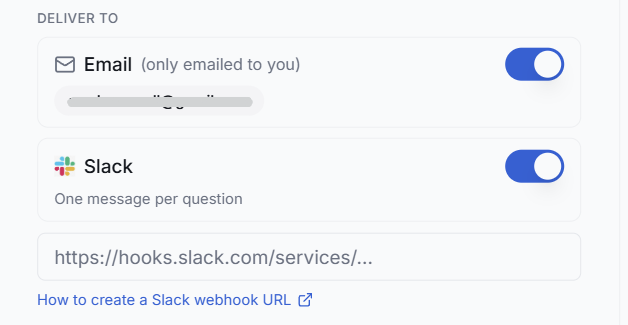
Under Delivery, select Email, Slack, or both.
Turn on Email to receive your scheduled analysis at the email address associated with your Wicked Reports account.
Your email address is displayed beneath the Email option.
Scheduled emails can only be sent to your own account email address. You cannot add additional email recipients.
Slack
Turn on Slack to send your scheduled answers to a Slack channel.
To configure Slack:
- Create an incoming webhook URL in Slack.
- Copy the webhook URL.
- Paste it into the Slack webhook field in Wicked Reports.
Your webhook URL should begin with https://hooks.slack.com/.
Each scheduled question is delivered as a separate Slack message.
Need help creating a webhook? Select How to create a Slack webhook URL in the scheduling window.
You must enable at least one delivery method to save your schedule.
Step 5: Select Your Questions
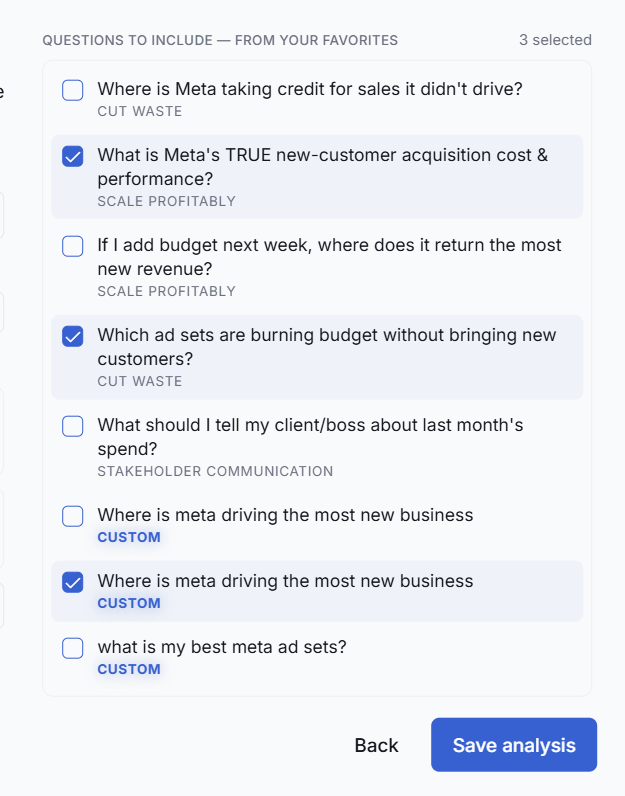
Under Questions to include – from your favorites, select the questions you want answered automatically.
- Review your list of favorited Analyst questions.
- Check the box beside each question you want included.
- Confirm the number of selected questions shown in the counter.
You can include multiple questions in a single scheduled analysis.
For example, a Weekly Marketing Review might include questions about channel performance, customer acquisition efficiency, and opportunities to scale.
You must select at least one question before saving.
Step 6: Save Your Analysis
Review your settings, then click Save analysis.
Your scheduled analysis is now configured.
The Send on a schedule switch is enabled by default, so your analysis is set to run according to the timing you've selected.
If you don't want it to begin sending yet, you can turn this switch off to pause it.
Viewing Your Scheduled Analyses
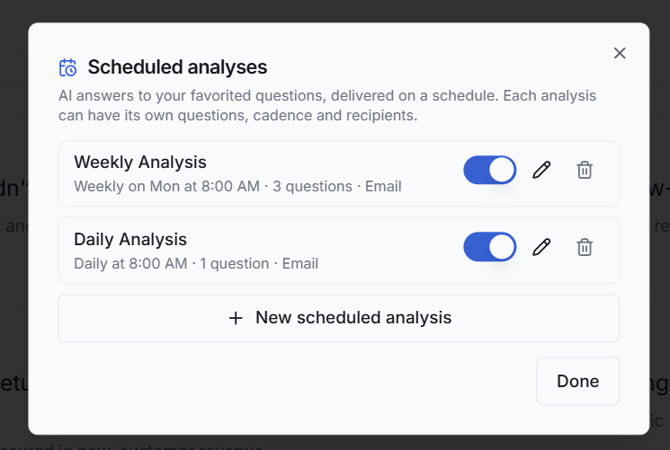
Click Schedule Analysis on the Analyst page to see your existing schedules.
Each scheduled analysis displays:
- Name — The name you assigned to the analysis.
- Timing — When the analysis is scheduled to run, such as Weekly on Mon, Thu at 8:00 AM.
- Questions — The number of questions included.
- Delivery — Whether results are delivered by Email, Slack, or both.
- Status — Whether the schedule is turned on or paused.
You can create and manage multiple schedules independently.
The Schedule Analysis button also displays a number indicating how many schedules are currently turned on.
Editing a Scheduled Analysis
You can change an existing scheduled analysis at any time.
- Open Schedule Analysis.
- Find the schedule you want to update.
- Click the pencil icon.
- Change the name, timing, delivery methods, questions, or scheduling status.
- Click Save changes.
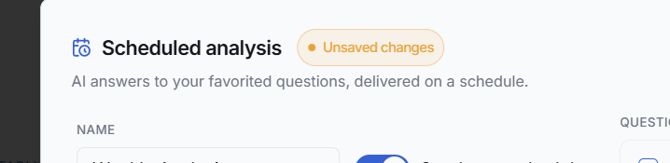
When you make a change, an Unsaved changes badge appears.
Your edits won't take effect until you click Save changes, including changes to the Send on a schedule switch within the editing window.
If you attempt to close the window or navigate away without saving, Wicked Reports asks:
Discard unsaved changes?
Choose Keep editing to return to your changes, or Discard changes to leave without saving.
Pausing or Resuming a Schedule
You can temporarily stop a scheduled analysis without deleting it.
To pause a schedule
Open Schedule Analysis and turn off the switch beside the schedule.
Your change saves immediately, and you'll see a confirmation that the schedule was turned off.
Alternatively, open the schedule for editing and turn off Send on a schedule, then click Save changes.
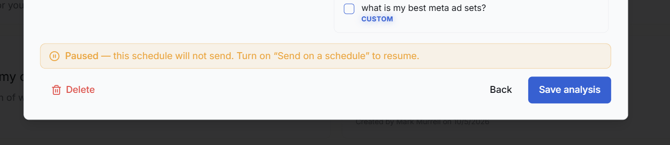
A paused schedule displays a Paused label. Inside the editing window, you'll also see:
Schedule is paused and will not send.
While paused, the analysis will not send scheduled answers, but its questions, timing, and delivery settings are preserved.
To resume a schedule
Turn the schedule's switch back on from the schedules list, or enable Send on a schedule while editing and save your changes.
Your analysis will resume according to its configured schedule.
Deleting a Scheduled Analysis
If you no longer need a scheduled analysis, you can permanently delete it.
- Open Schedule Analysis.
- Find the analysis you want to remove.
- Click the trash icon.
- Confirm that you want to delete it.
You can also delete a saved schedule by opening it for editing and selecting the red Delete button at the bottom left.
Important: Deleting a scheduled analysis is permanent and cannot be undone.
If you only want to stop receiving the analysis temporarily, consider pausing it instead.
How to Tell Which Analyst Questions Are Scheduled
You can identify scheduled questions directly from the Analyst page.
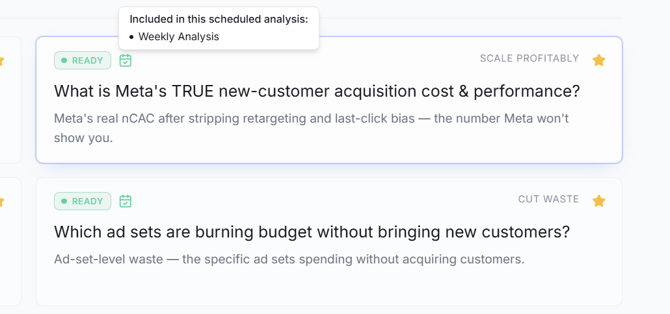
Questions included in at least one active scheduled analysis display a green calendar icon.
Hover over the icon to see the names of the scheduled analyses that include that question.
If a question belongs to multiple active schedules, you'll see those schedules listed.
Paused schedules are not included in the calendar icon's list.
This makes it easy to see which questions you're already receiving automatically without opening each scheduled analysis individually.
Frequently Asked Questions
Can I schedule more than one analysis?
Yes. You can create multiple scheduled analyses, each with its own name, questions, timing, and delivery methods.
For example, you might have a daily performance analysis and a separate weekly executive summary.
Can I schedule a custom question?
Yes. Both standard and custom Analyst questions can be scheduled.
You must favorite the question first. Custom questions are identified by a highlighted CUSTOM label.
Can I schedule a question without favoriting it?
No. Only favorited questions are available for scheduling.
Return to Analyst, star the question, and then open Schedule Analysis again.
Can I send scheduled emails to my team?
Not directly through the Email option.
Scheduled emails are delivered only to the email address associated with your Wicked Reports account.
If you want to share scheduled answers with a team, you can configure delivery to a Slack channel using an incoming webhook.
Can I receive answers by both Email and Slack?
Yes. Enable both delivery methods when creating or editing your schedule.
At least one delivery method must be enabled.
What time zone does my schedule use?
Your account's reporting time zone.
The time zone is displayed next to Send time so you can confirm when your scheduled analysis will be delivered.
Why am I seeing a warning when I select an early delivery time?
If you select a time before 8:00 AM, Wicked Reports warns that daily data processing may not be complete.
For the most current daily data, consider scheduling your analysis for 8:00 AM or later.
What happens if I pause a schedule?
Your scheduled analysis stops sending answers, but all its settings are preserved.
You can turn it back on whenever you're ready.
Why doesn't a question show the green calendar icon?
The green calendar icon appears only when a question belongs to a scheduled analysis that is currently turned on.
If the question is included only in paused schedules, the icon won't appear.
Why does the Schedule Analysis button show a number?
The number indicates how many scheduled analyses are currently turned on.
Paused schedules are not included in that count.
Are my changes saved automatically?
It depends on where you make them.
The on/off switch in the schedules list saves immediately.
When editing a schedule, you must click Save changes before any edits take effect.