![wicked logo.webp]](https://help.wickedreports.com/hs-fs/hubfs/wicked%20logo.webp?height=40&name=wicked%20logo.webp)
You can have Wicked Reports automatically deliver answers to your scheduled Analyst questions directly to a Slack channel.
To enable Slack delivery, you'll need to create a Slack Incoming Webhook URL. This URL allows Wicked Reports to send scheduled analysis results to the Slack channel you choose.
Follow the steps below to create your webhook URL and connect it to Analyst.
Before You Start
You'll need access to the Slack workspace where you want to receive your scheduled analyses.
You should also have a Slack channel where you'd like the messages delivered. If you don't already have one, create a new channel before continuing.
Depending on your organization's Slack settings, you may need administrator approval to add integrations.
Step 1: Open Your Slack Channel
- Open Slack.
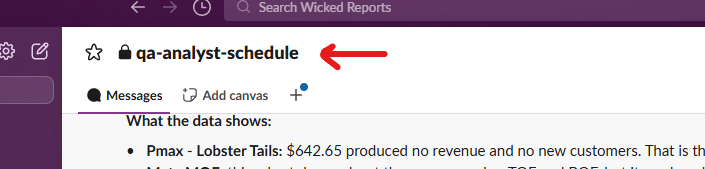
- Navigate to the channel where you want to receive your scheduled Analyst results.
- Click the channel name at the top of the conversation to open its details.
Step 2: Find Incoming WebHooks
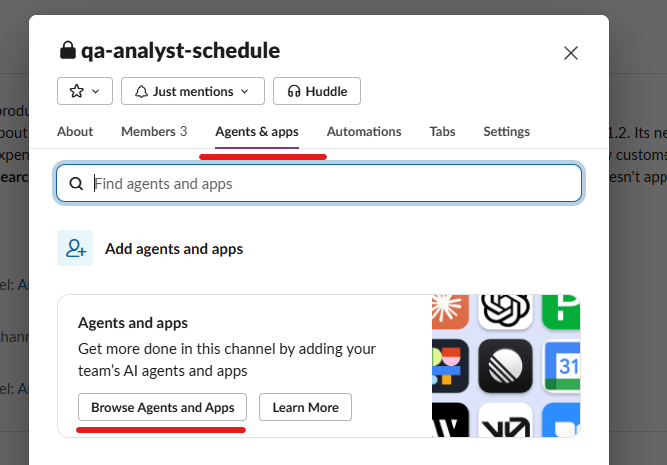
- In the channel details window, select Agents & apps.
- Click Browse Agents and Apps.
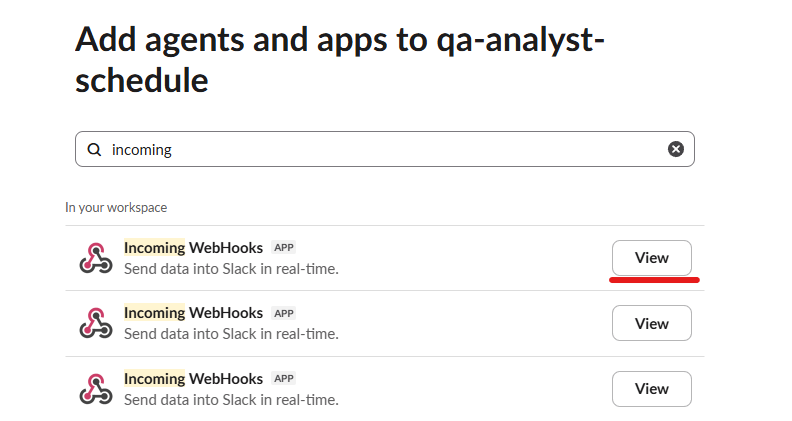
- Search for
Incoming WebHooks. - Select the first Incoming WebHooks app from the search results.
Step 3: Configure Incoming WebHooks
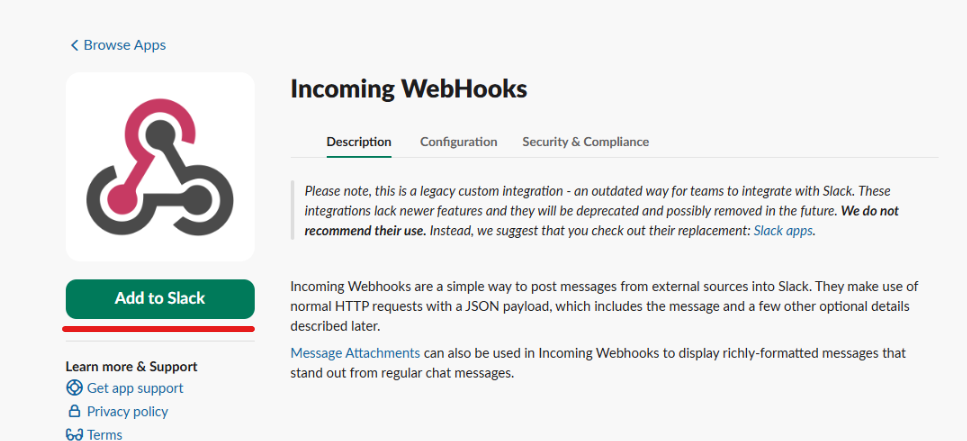
On the Incoming WebHooks app page:
- Click Configuration to open the integration settings.
- Click Add to Slack.

Step 4: Select Your Slack Channel
Slack will ask where you want the webhook to send messages.
- Under Post to Channel, select the Slack channel where you want Analyst results delivered.
- Click Add Incoming WebHooks integration.
Slack will create an incoming webhook for your selected channel.
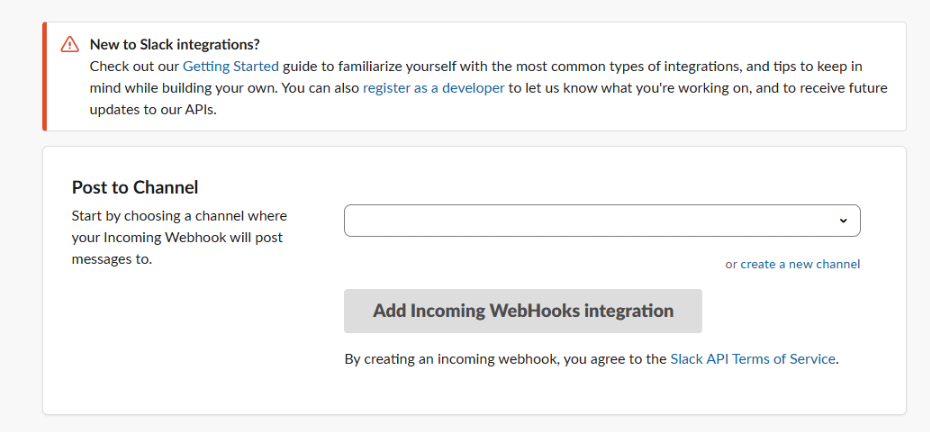
Step 5: Copy Your Webhook URL
After adding the integration, Slack displays a Setup Instructions section containing your new Webhook URL.
- Locate the Webhook URL field.
- Copy the complete URL.
Your URL will begin with:
https://hooks.slack.com/services/
This is the URL you'll provide to Wicked Reports in your Scheduled analysis.
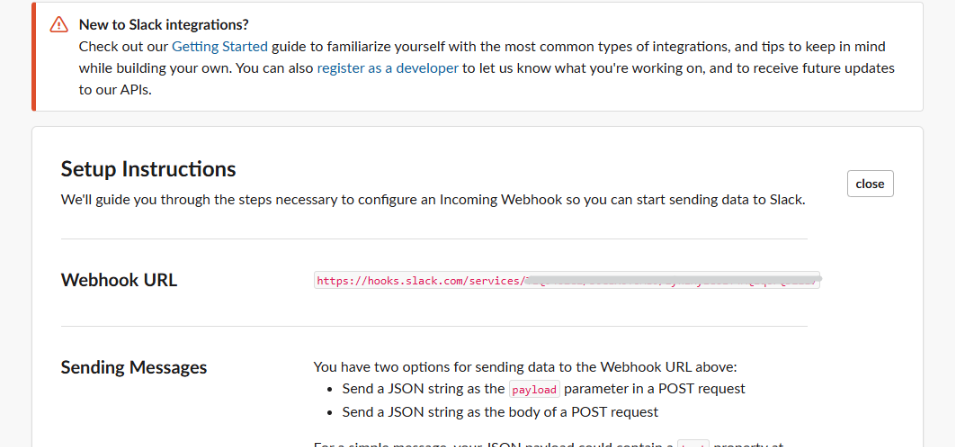
Important: Keep your webhook URL private. Anyone with access to it may be able to send messages to your Slack channel.
Step 6: Connect Slack to Analyst
Now that you have your webhook URL, return to Wicked Reports.
- Open Analyst.
- Click Schedule Analysis.
- Create a new scheduled analysis or edit an existing one.
- Under Delivery, enable Slack.
- Paste your webhook URL into the Slack webhook field.
- Select the questions you want answered and configure your delivery schedule.
- Click Save analysis or Save changes.
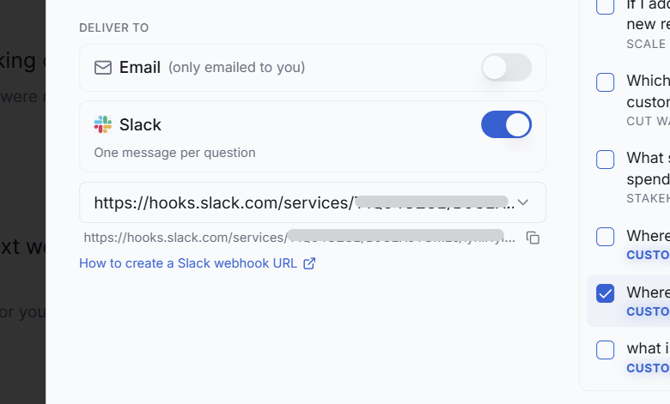
Your scheduled Analyst answers will now be delivered to your selected Slack channel according to your configured schedule.
Each scheduled question is sent as a separate Slack message.
Using Slack with Multiple Scheduled Analyses
You don't need to create a new webhook for every scheduled analysis.
Once you've used a webhook URL in Analyst, you can use it again when configuring additional schedules.
This allows you to send multiple scheduled analyses to the same Slack channel.
If you want results delivered to a different channel, repeat the Slack setup process to create a webhook for that channel.
Frequently Asked Questions
Can I send scheduled analyses to different Slack channels?
Yes. Create a webhook for each channel where you want results delivered, then select the appropriate webhook when configuring your scheduled analysis.
Can I reuse the same webhook for multiple schedules?
Yes. Multiple scheduled analyses can use the same webhook URL.
Can I receive scheduled analyses through both Slack and email?
Yes. You can enable both delivery methods when creating or editing a scheduled analysis.
What if I can't add the Incoming WebHooks integration?
Your Slack workspace may restrict who can install apps or integrations.
Contact your Slack administrator for assistance or approval.
Why does Slack say Incoming WebHooks is a legacy integration?
Slack identifies this particular Incoming WebHooks integration as a legacy integration and recommends newer Slack apps for long-term use.
The integration provides the webhook URL format required for Analyst's Slack delivery. However, Slack may change or discontinue this integration in the future.
Wicked Reports will be building a direct slack integration in the future
Why am I getting an invalid webhook URL error?
Make sure you've copied the complete URL from Slack.
A valid Slack webhook URL begins with:
https://hooks.slack.com/
Check that the URL hasn't been cut off or accidentally modified when pasting it into Analyst.
Why aren't my scheduled analyses appearing in Slack?
Check that:
- Your scheduled analysis is turned on and isn't paused.
- Slack delivery is enabled.
- The webhook URL is correct.
- You're checking the Slack channel associated with the webhook.
- Your scheduled delivery time has passed, using your Wicked Reports account's reporting time zone.
If the Slack integration was removed or disabled, you may need to create a new webhook URL.
You're Ready to Receive Analyst Results in Slack
Once your webhook URL is connected, Analyst can automatically deliver answers to your favorite marketing questions directly to Slack.
For more information about choosing questions, setting delivery times, and managing your scheduled analyses, see How to Schedule an Analyst Question.