![wicked logo.webp]](https://help.wickedreports.com/hs-fs/hubfs/wicked%20logo.webp?height=40&name=wicked%20logo.webp)
On this Page:
About This Integration
Integrating HighLevel to Wicked Reports sends your new leads from HighLevel directly into Wicked Reports. This allows us to automatically detect, track, and attribute new and existing lead conversions to the marketing spend on your ad platforms and customer lifetime value from your revenue sources.
Integration Steps
Connecting HighLevel to Wicked Reports requires two values from your HighLevel sub-account: Your Location ID (Sub-Account ID) and a Private Integration Token (API Key) . Then, you'll need to go through the quick integration process inside your account. Get started with the steps below.
Get Your Location ID from HighLevel
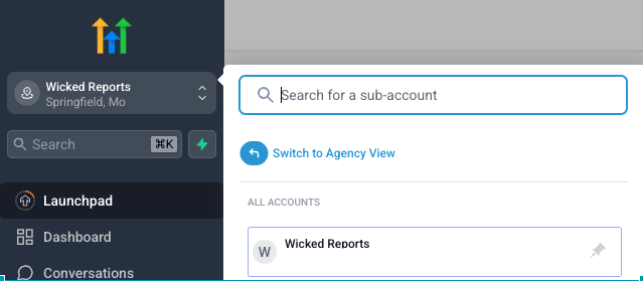
- Log in to GoHighLevel and make sure you are inside the Sub-Account you want to connect (not Agency View).
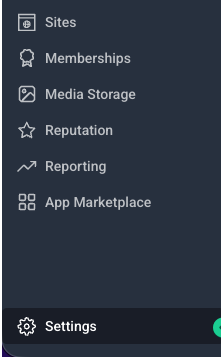
- Click ⚙️ Settings (the gear icon in the bottom-left sidebar).
- Click Business Profile. Your Location ID is the first field under General Information at the top of the page. Click the copy icon to copy it.
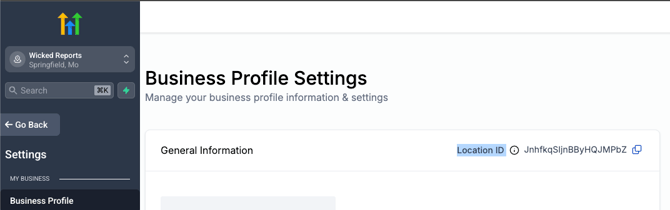
/v2/location/ in the URL.Create a Private Integration Token in HighLevel
- Still in Settings, click Private Integrations in the left sidebar.
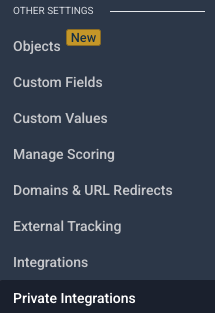
- Click "Create new Integration".
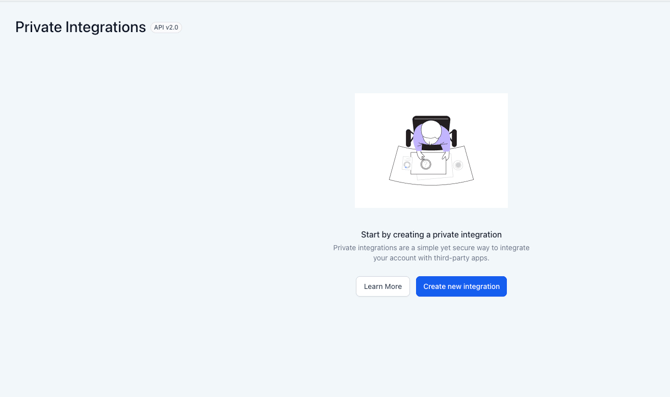
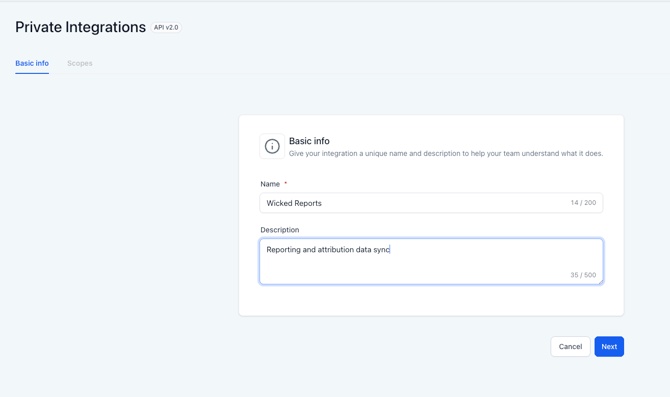
- Enter a name (e.g., "Wicked Reports") and an optional description (e.g., "Reporting and attribution data sync"), then click Next.
- Select the required scopes (permissions). Check the following:
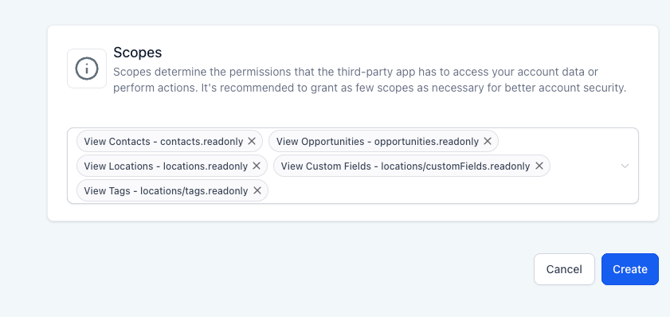
View Contacts - contacts.readonlyView Opportunities - opportunities.readonlyView Locations - locations.readonlyView Custom Fields - locations/customFields.readonlyView Tags - locations/tags.readonly
- Click Create. Your Private Integration Token will appear on screen. Copy it immediately.
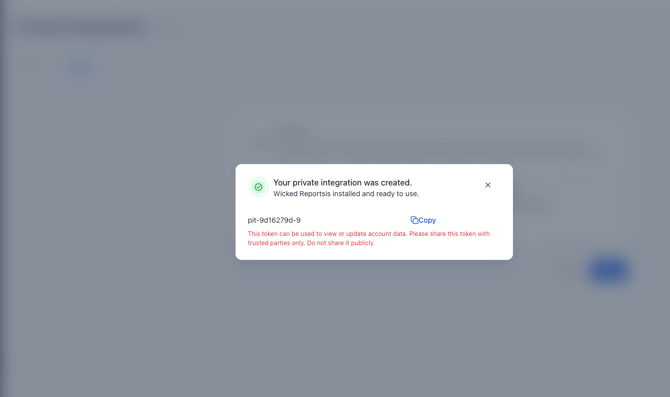
Important: Copy the token immediately — you will not be able to see it again. Store it somewhere safe until you paste it into Wicked Reports in the next step.
Connect HighLevel in Wicked Reports
-
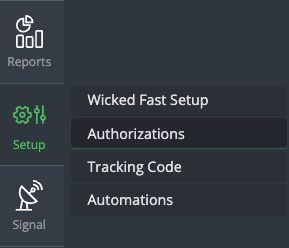
Log in to Wicked Reports and go to Setup → Authorizations.
- Under Contacts Data, find HighLevel and click Connect.
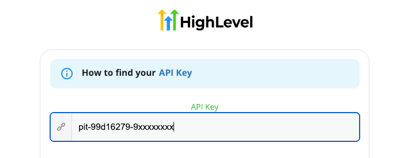
- Paste your Private Integration Token in the API Key field.
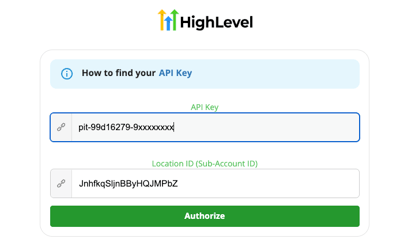
- Paste your Location ID in the Location ID (Sub-Account ID) field, then click "Authorize".
That's it! You're now integrated. If you have any questions, please contact support@wickedreports.com.
What Happens Next After Integration
Wicked Reports will pull all historical lead data from HighLevel to seed your account attribution. This allows us to correctly identify these leads as already existing leads in the event they click, optin, or otherwise engage with your marketing funnels. We can then attribute revenue to their actions using the correct attribution models.
Each morning at about 2am EST we will pull the previous day's new leads and attribute the marketing responsible for creating these new leads. Anytime in the future when these new leads buy, we can attribute the revenue back to the marketing that created the lead and update the ROI accordingly.
Once you have authorized your order systems, we will pull sales & revenue data and then create cohort reporting between your HighLevel lead data and your order revenue data.
How to Verify Your CRM Data
Wicked Reports native CRM integrations generally work seamlessly. You will see the leads inside of Wicked the following day.
To verify the data is flowing correctly, go into the API Verification page and make sure the number of contacts ("entries", seen at the bottom of the page) aligns with your CRM. 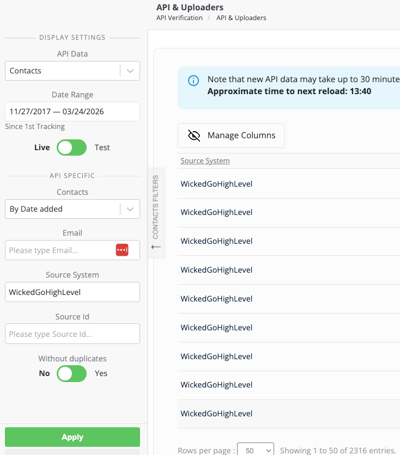
Now, your integration is verified! If you have any questions, please just reach out to support@wickedreports.com
FAQ
Q: I don't see "Private Integrations" in my HighLevel settings. What do I do?
Go to Settings → Labs inside your HighLevel sub-account and enable the Private Integrations feature. It will then appear in the Settings sidebar.
Q: Can I use an Agency-level token instead of a Sub-Account token?
No. Wicked Reports requires a Sub-Account-level Private Integration Token for the specific location you want to connect. An Agency-level token will not work.
Q: I lost my Private Integration Token. How do I get a new one?
Go to Settings → Private Integrations in HighLevel, click on the integration you created, and choose "Rotate and expire this token later" (gives a 7-day grace period where both tokens work) or "Rotate and expire this token now" (immediate). Copy the new token and update it in Wicked Reports under Setup → Authorizations → HighLevel.
Q: I previously connected HighLevel using the old v1 API key. Do I need to reconnect?
Yes. The old v1 API keys have been deprecated by HighLevel. You will need to create a new Private Integration Token and re-authorize with both the token and your Location ID following the steps above.