![wicked logo.webp]](https://help.wickedreports.com/hs-fs/hubfs/wicked%20logo.webp?height=40&name=wicked%20logo.webp)
On this page
Overview
Tracking Status is an automatic anomaly detector that tells you whether your paid marketing is being tracked correctly. It runs in the background and surfaces in your reports as a simple flag — No Issue Detected, Tracking Issue, Lead Issue, or Unavailable — so you and your team can see at a glance whether the data you're acting on is trustworthy.
This article walks through how to use the Tracking Status in your account, what each status means, and how to fix the ones that need attention. Setup is minimal — only Lead Issue detection requires a one-time configuration step, covered at the end of the article.
Plan for someone on your team to check Tracking Status at least once a week. Issues compound when they go unnoticed, and a regular cadence prevents this.
How to use the Tracking Status
There are two metrics inside your Funnel Vision Report that surface tracking health:
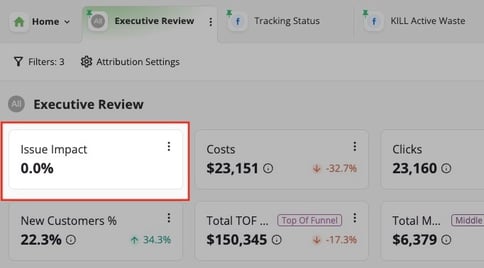
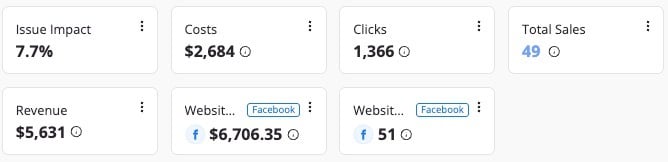
- Issue Impact — the percentage of yesterday's costs that have a Tracking or Lead Issue. Available as both a Summary Metric and a column.
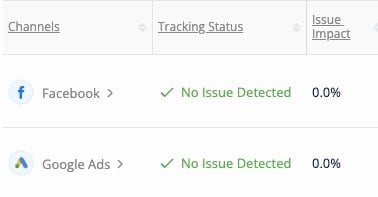
- Tracking Status — a per-row signal that flags whether a specific channel, campaign, ad set/group, or ad has a Tracking Issue, Lead Issue, or No Issue Detected. Available as a column only.
There are two practical ways to use them — in your Executive Review and in a troubleshooting view. See below.
Add the status to your Executive Review for building trust
For high-level monitoring, we recommend adding the Tracking Status column and the Issue Impact metric to whichever executive-style View you already use. This gives leadership — and anyone watching tracking health — a fast read on whether anything is off and what share of spend is affected, without leaving the report they already check.
Why this matters. This is your constant trust signal. a clean read here means the rest of the dashboard can be trusted too.
Where each metric goes:
- Issue Impact works in both places — add it as a Summary Metric and column. The summary version gives you the at-a-glance "% of cost impacted" number; the column version lets you see which channels are effected. Place the Issue Impact as the first Summary Metric.
- Tracking Status is a row-level signal only — add it as a column. There is no summary version. We recommend placing Tracking Status and Issue Impact as the first two columns of your view so the status is visible at a glance.
Use the Tracking Status view for troubleshooting
The Executive Review is your at-a-glance check — it tells you whether something is off and how much spend is affected. To find the specific row causing the issue — the ads that needs to be fixed — switch to a dedicated Troubleshooting view.
This is where the person responsible for tracking health goes to drill in. A typical workflow might be:
1. Your Executive Review shows that Google Ads is flagging tracking issues this morning.
2. Open your Tracking Status view in FunnelVision.
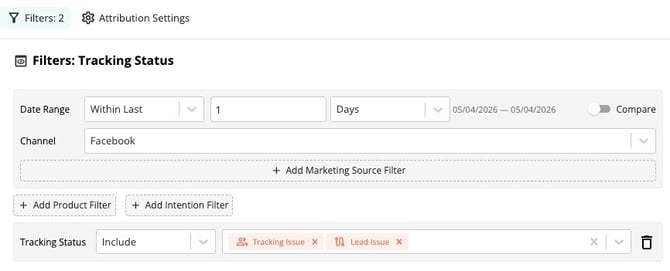
3. Set the Channel filter to Google Ads to scope the view to the affected channel.
4. Add a Tracking Status filter set to Include → Tracking Issue, Lead Issue to hide the rows that are clean.
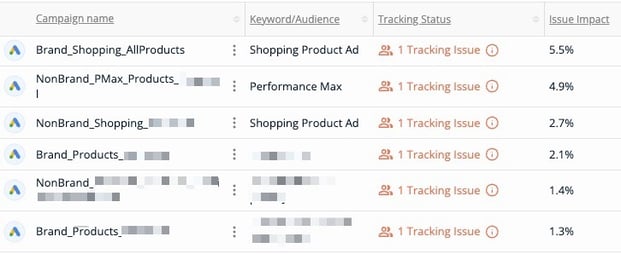
5. Now, you're only looking at the ads that need attention.
How to create the Tracking Status view
1. Go to the FunnelVision Report.
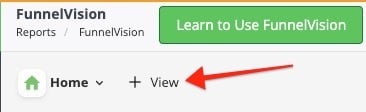
2. Click + View, then select Add Custom View.
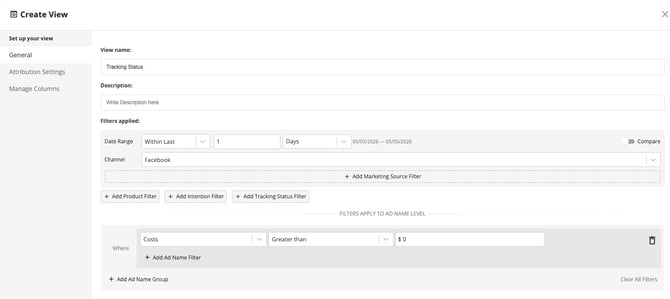
3. Update the General settings.
-
- View Name: Tracking Status
- Date Range: Last 1 Days.
Matches the date range the Tracking Status feature uses. - Channel: Facebook.
Highly recommended — this is what makes the Facebook Website Purchase Conversion Value and Facebook Website Purchases metrics available in your saved view. - Cost filter: Cost is Greater than $0.
Keeps the view clean by hiding rows attributed to $0 Cost assets.
4. Keep the Attribution settings as-is — no action needed.
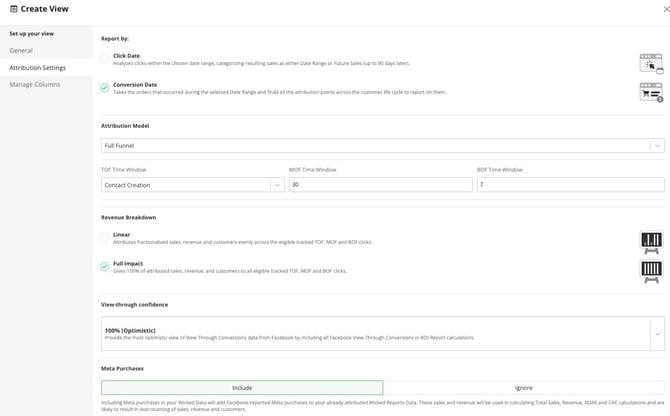
The defaults Attribution Settings are already the right ones for this view, and changing them will skew the comparison the view is designed for. When you compare Wicked Reports to an ad platform, the numbers will never match exactly because the two attribution models are different. The settings below produce the fairest possible apples-to-apples comparison.
-
- Report by: Conversion Date.
Ad platforms report by Conversion Date — this aligns with their model. - Attribution Model: Full Journey.
Ad platforms are unaware of one another and each claim full credit for a sale. Full Journey credits every click in the customer's journey, mirroring that behavior. - Revenue Breakdown: Full Impact.
Ad platforms are unaware of one another and each claim full credit for a sale. Full Impact gives every click in the customer's journey full credit, mirroring that behavior. - View-Through Confidence: 100%.
Facebook includes view-throughs in its conversion value, so they need to be included in Wicked too for the comparison to work. - Meta Purchases: Include.
Facebook includes Meta Purchases in its conversion value, so they need to be included in Wicked too for the comparison to work.
- Report by: Conversion Date.
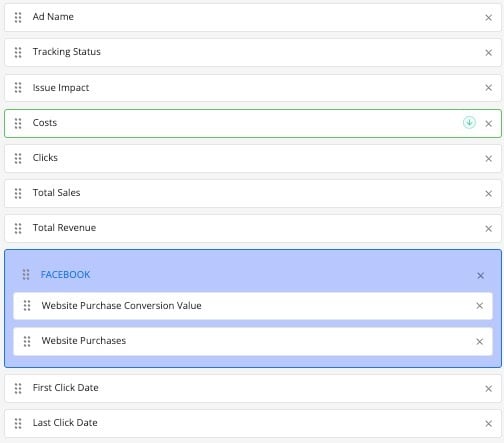
5. Place the Columns in this exact order:
Ad Name, Tracking Status, Issue Impact, Costs, Clicks, Total Sales, Total Revenue, Facebook Website Purchase Conversion Value, Facebook Website Purchases, First Click Date, Last Click Date.
6. Place the Summary Metrics in this exact order:
Issue Impact, Costs, Clicks, Total Sales, Total Revenue, Facebook Website Purchase Conversion Value, Facebook Website Purchases.
How to set up Lead Issue tracking
Lead Issue is the only Tracking Status that requires setup. Without it, Wicked Reports has no way to know which of your campaigns are supposed to generate leads — so it won't flag a Lead Issue when something goes wrong.
The setup is easy:
1. Make sure the Intention column is visible in your view. If it isn't, click Manage Columns and add it.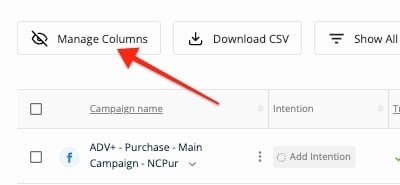
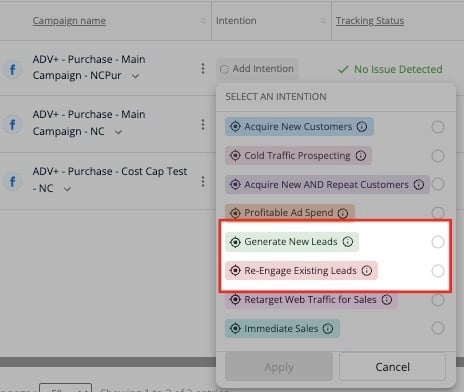
2. Tag each lead-generating campaign with one of the two Lead Intentions:
-
- Generate New Leads — campaigns designed to bring in net-new leads.
- Re-Engage Existing Leads — campaigns targeting leads already in your database.
What each Tracking Status means and how to fix it
Each Tracking Status tells you something specific about what's working — or what's not — and what to do about it. Statuses update once per day, so after making a fix, the change will show up the next morning.
Unavailable
Definition. The automatic Tracking Status is only available for paid channels. Non-paid channels (organic traffic, email, SMS, etc.) aren't automatically tracked, so they'll always show as Unavailable.
How to fix it. No action needed. To run a manual verification and confirm tracking is healthy on these assets, review The 5 Requirements for Accurate Tracking.
No Issue Detected
Definition. Requirement #1 (Tracking Parameters) and Requirement #2 (Wicked Tracking Code on the Landing Page) are both being met.
How to fix it. No action needed. If you want an additional boost of confidence, review The 5 Requirements for Accurate Tracking.
Tracking Issue
Definition. Requirement #1 (Tracking Parameters) or Requirement #2 (Wicked Tracking Code on the Landing Page) are not being met.
How to fix it.
- Complete Requirement #1.
- Complete Requirement #2.
To verify same-day rather than wait for the next-morning status update, run the manual tests under each requirement.
Lead Issue
Definition. Requirement #3 (Capture the Email) is not being met.
How to fix it. This is typically caused by iFrames blocking email capture, but could also be because the Wicked Tracking Code isn't installed on your opt-in page. Follow the instructions in Requirement #3.
Prerequisite. Lead Issue detection only runs on campaigns tagged with a Lead Intention — Generate New Leads or Re-Engage Existing Leads. If your campaigns aren't tagged yet, see How to set up Lead Issue tracking.