![wicked logo.webp]](https://help.wickedreports.com/hs-fs/hubfs/wicked%20logo.webp?height=40&name=wicked%20logo.webp)
On this page
- Is this article right for you?
- Step 1 - Set realistic expectations (80% Comparison Rule)
- Step 2 - Isolate the issue to a specific asset
- Step 3 - Verify each of the five requirements
- Step 4 - After making changes, review the results
Is this article right for you?
This article answers several common questions about Wicked Reports tracking. Find yours below — each comes with guidance on how to use the rest of the article.
- "My Wicked Reports numbers don't match what another platform shows (Facebook, Google, Klaviyo, etc.) — or something just feels off about my data." Read through Steps 1–4 below in order. This is the main troubleshooting flow.
- "Why is my Attribution Health so low?" Most often, the Wicked Tracking Code is missing somewhere it needs to be — usually on your checkout page. Skip ahead to Requirement #3 — Capture the Email in Step 3.
- "Why is my unattributed revenue so high?" Unattributed revenue means an order came through but Wicked couldn't tie it to a click. Same root cause as low Attribution Health. Skip ahead to Requirement #3 — Capture the Email in Step 3.
- "Why is my organic attribution so high?" Wicked Reports defaults a click to Organic when there are no tracking parameters on the URL. Skip ahead to Requirement #1 — Tag the URL in Step 3.
- "My Mission Control totals don't match my CRM or order system." Wicked Reports and your source system should match within roughly 3% over a 3–7 day window. Larger gaps point to an integration issue. Skip ahead to Requirement #4 — Send the Conversion in Step 3.
This article is a four-step process for confirming your tracking is healthy and finding what to fix when it isn't. Walk through it any time you want confidence that every dollar of revenue is being tied back to the right marketing.
Step 1 — Set realistic expectations (80% Comparison Rule)
Before you dive into the requirements, make sure you actually have a tracking issue. When comparing Wicked Reports Revenue (or Lead Count) against what the ad platform shows (Facebook, Google, Klaviyo, etc.), Wicked should land at or above 80% of the platform's number.
Requirements for a fair comparison:
-
Use the Tracking Status view in Funnel Vision, it has the right attribution settings.
- Use a date range of the last 3 days, this ensures you have a large enough sample size.
- Calculate the ratio: Wicked Reports ÷ Ad Platform = 80% or higher.
The main reason the gap exists: platforms like Facebook and Klaviyo use modeled data, which can inflate their reported numbers. Wicked Reports uses first-party data, which is more conservative by design - we only report what can be verified.
Treat 80% as a soft line in the sand, not a hard cutoff. If you're at 80% or higher, you likely don't have a tracking issue. If you're below 80%, that's a signal worth investigating — not a confirmed problem. The rest of this article (Steps 2–4) is how you confirm what's actually going on.
Step 2 — Isolate the issue to a specific asset
A general concern like "Wicked isn't tracking" or "Facebook isn't tracking" is hard to act on. Before running through the five requirements, narrow your investigation to a specific asset — or a small group of related assets — where the disparity is most pronounced.
If you're unsure where the issue is, then The fastest way to isolate the issue is to run the 80% Comparison Rule (from Step 1), drilling into your comparison data from the top down:
- Channel level. Is one channel disproportionately off?
- Campaign level within the affected channel.
- Ad set, ad group, or specific asset within the affected campaign.
You're looking for the asset (or small group) where the disparity is largest. These are the assets you'll run through the five requirements below.
If the gap is roughly even across all channels and campaigns, the issue is more likely systemic — for example, your tracking code isn't installed at all (Requirement #2) or a major integration is broken (Requirement #4).
Step 3 — Verify each of the five requirements
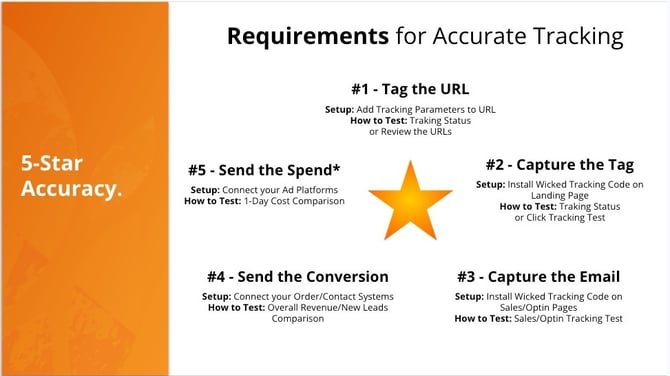
The accuracy of your data depends on five tracking requirements. When all five tracking requirements are working together, Wicked Reports can confidently tie every dollar of revenue back to the marketing that produced it.
Walk through the relevant requirement(s) below — the cause of a tracking issue is almost always one of these five not being met.
For each requirement, you'll find:
- What it is — the concept and why it matters.
- How to set it up — the steps to get it working, with links to the detailed setup docs.
- How to test it — through automatic and manual tests, depending on the requirement.
Requirement #1 — Tag the URL
The first requirement is to add Tracking Parameters to the URL.
A tracking parameter is an extra piece of information added to the end of a URL that tells Wicked Reports where a click came from. UTMs are the most common type of tracking parameter, but Wicked also uses its own dedicated parameters (e.g. wickedsource, wickedid) for our native ad platform integrations.
Here's an example of a fully tagged SMS link:
http://mycompany.com/?utm_source=Attentive&utm_medium=SMS&utm_campaign=March_Sale&utm_term=Existing_Customers&utm_content=Message_3
Everything after the ? is the tracking parameter. In this case, it tells Wicked Reports the click came from an SMS sent via Attentive, to your existing customer base, as part of your March Sale campaign, and was the third message in the series.
How you tag your URLs depends on the channel
- Native ad platforms (Facebook, Google, etc.): Each native platform has its own setup. For example, Facebook ads need to be manually tagged with
?wickedsource=Facebook&wickedid={ad.id}, while Google deploys tracking automatically at the account level. - Klaviyo: Klaviyo offers an account-level tracking parameter setting that you'll configure once.
- HubSpot, ActiveCampaign, Mailchimp, AWeber: Tracked automatically through our Contacts integration — no manual UTMs required.
- Everything else: Tag your links with manual UTMs.
You don't need to memorize the exact parameters for each platform — we maintain a single reference doc covering them all. For more details, visit How to Set Up Tracking Parameters.
How to test it
Automatic check (Tracking Status). If the tracking parameter isn't added to a URL, the Tracking Status in FunnelVision will surface a Tracking Issue on the affected ad. This is the fastest way to spot tagging problems. For more details, visit What is the Tracking Status and how do I use it?
Manual check. Open one of your live marketing assets — an SMS, an email send, a Facebook ad's destination URL, etc. — and inspect the URL. Confirm:
- The tracking parameters are present (everything after the
?). - The values match what you expect (correct campaign, correct source, correct content).
- Native ad platform URLs include the right
wickedsourceandwickedidparameters.
If anything is missing or wrong, refer back to the setup guidance above.
Requirement #2 — Capture the Tag
The second requirement is that Wicked is able to capture the parameters from the URL. This is achieved by installing the Wicked Tracking Code on the landing page.
The Wicked Tracking Code is a short snippet of JavaScript that lives on the back end of your website. When a visitor clicks one of your tagged URLs and lands on your page, the tracking code fires and captures two things:
- Visitor data (such as IP address) so Wicked knows who the visitor is.
- The tracking parameters from the URL so Wicked knows where they came from.
Without the tracking code installed, the parameters from Requirement #1 land on a page where nothing is listening — and the click is lost.
How to set it up
Most customers install the Wicked Tracking Code on every page of their website using Google Tag Manager. It's the simplest, most reliable approach, and it ensures every landing page is covered. Visit How to Install the Wicked Tracking Code for full instructions.
How to test it
Automatic check (Tracking Status). If the tracking code isn't firing on a landing page, the Tracking Status in FunnelVision will surface a Tracking Issue on the affected ad. This is the fastest way to spot Click Tracking problems. For more details, visit What is the Tracking Status and how do I use it?
Manual check. Run the Click Tracking Test in the Tracking Validation Tool. The test loads your landing page in a controlled environment and confirms that the tracking code fires correctly and successfully captures the URL parameters. For step-by-step instructions, visit How to Use the Tracking Validation Tool.
Requirement #3 — Capture the Email
The third requirement is being able to capture the visitor's email address. This is one of the most critical, and most overlooked, steps in the process. This usually happens in one of two places:
- The point of sale — your checkout page.
- The point of opt-in — for example, a call booking form, lead magnet form, or newsletter signup.
Note: Opt-in tracking is only necessary if you make marketing decisions based on lead counts — for example, spending more on Campaign A because it generated 100 leads vs. Campaign B's 10. If your decisions are revenue-based instead, you can skip the opt-in side and focus your validation efforts on the checkout side of Requirements #3 and #4.
When the tracking code captures the email address on these pages, it joins the email address to the IP address captured in Requirement #2. That's how Wicked Reports stitches a known person (their email) back to the marketing that originally brought them to your site (the tracking parameter).
How to set it up
The setup is the same as Requirement #2 — make sure the Wicked Tracking Code is installed on every opt-in form and every checkout page.
Watch out for iFrames. iFrames are the single most common reason email capture fails. An iFrame acts like a glass window: the Wicked Tracking Code is on the parent page, but it can't reach inside to capture the email submitted in the form. If a form is loaded inside an iFrame, you'll need to take extra steps to make sure tracking still works. To check whether you have iFrames on your forms — and what to do about them — visit How to Track iFrames for Opt-ins & Orders.
How to test it
Automatic check (opt-in tracking only). The Tracking Status view in Funnel Vision auto-detects opt-in-side issues — if a source has a Lead Issue status, the tracking code isn't capturing the email at the point of opt-in. Tracking Status cannot auto-detect when the tracking code is missing on your checkout page; that only surfaces through the manual test below.
Manual check. Run the relevant test in the Tracking Validation Tool:
- Sales Tracking Test — validates that your checkout page captures the email at the point of sale.
- Opt-in Tracking Test — validates that your opt-in forms capture the email when a visitor submits.
For step-by-step instructions on running either test, visit How to Use the Tracking Validation Tool.
Requirement #4 — Send the Conversion
Capturing the email is only half the picture — Wicked Reports won't attribute a conversion until it's been verified through your Contact or Order Management system. That verification happens through your native integrations.
Once a conversion is sent, the order (or new contact) arrives in Wicked Reports — including the email address. For orders, this also includes the actual revenue amount. Since that email is already tied to the original tracking parameters (per Requirement #3), Wicked Reports can now connect the revenue back to the marketing source that first brought the visitor in — completing the chain from click to verified, dollar-amount conversion.
How to set it up
To set this up, connect your order and contact systems on your Authorizations page. If your system isn't on the native integration list, review the Non-Native Integration Options.
Note: Connecting your Contact system is only necessary if you make marketing decisions based on lead counts. If your decisions are revenue-based, you can skip the contact integration and focus on connecting your Order system.
How to test it
To verify your order and contact integrations are sending conversions correctly, compare the totals in the Wicked Reports Mission Control report against the totals in your source system over a small date range (3–7 days). For Leads, compare the Wicked ReportsNew Leads to the new contacts in your contact system.
The two systems should match within a 3% margin. If the disparity is larger than that, the most common causes are:
- Platform definition differences. For example, Shopify's revenue calculation may include or exclude refunds, discounts, or shipping in ways that differ from how Wicked Reports counts revenue.
- Gross vs. net. Your order system may report gross revenue while Wicked Reports defaults to net (or vice versa).
- Time zone differences. If your systems run on different time zones, a short date range can include or exclude transactions at the edges.
- Incomplete capture. Your contact system may not be sending every lead. If you're using a non-native integration like Zapier, double-check that all lead sources are wired through correctly.
For more details, visit How to Validate Your Overall Sales & Revenue.
Requirement #5 — Send the Spend
Note: This requirement only applies to paid media channels. If you're tracking organic traffic, email, SMS, or organic social, you can skip this step.
For Wicked Reports to calculate accurate ROAS (Return on Ad Spend), CAC (Customer Acquisition Cost), and other cost-based metrics, we need to know what you're spending on each ad platform. Your ad platform integrations are what send that cost data into Wicked Reports.
How to set it up
To set this up, connect each of your paid ad platforms on your Authorizations page. If your ad platform isn't on the native integration list, search for Adding Other Marketing Costs.
How to test it
Run a 1-Day Cost Comparison for each connected ad platform: compare the spend Wicked Reports recorded for yesterday against the spend shown in the platform's native reporting (Facebook, Google, etc).
The two should match within a small margin. If they don't line up, the most common causes are an integration that needs to be re-authorized, an ad-account permission issue, or a platform-specific reporting delay.
Contact customer support if you run into an issue.
Step 4 — After making changes, review the results
Tracking changes don't reflect in Wicked Reports immediately. After making a correction, plan for these timelines before re-checking:
- Tracking Status updates the next day after you've fixed an issue. If the status still shows an issue the next day, that's a sign something hasn't actually been resolved yet.
- Attributed Revenue and Leads typically need 3–7 days to stabilize and accurately reflect the change. Don't compare totals on the same day you made a fix — give the data time to flow through.
- Overall (Mission Control) Revenue and Leads updates the next day after you've fixed an issue. If the status still shows an issue the next day, that's a sign something hasn't actually been resolved yet.
Once the data has stabilized, check the metric that brought you here — your asset-level comparison against another platform, your Attribution Health score, your unattributed revenue, your organic attribution, or your Mission Control totals. If it's now in the expected range, the issue is resolved.