![wicked logo.webp]](https://help.wickedreports.com/hs-fs/hubfs/wicked%20logo.webp?height=40&name=wicked%20logo.webp)
Table of Contents
Introduction To Shopify Integration
Integrating Shopify with Wicked Reports ensures that all essential order details are passed into Wicked Reports. In addition, this integration will automatically add our tracking code directly to your store.
- If Shopify is your "source of truth" OMS, storing all of the orders Wicked Reports needs to attribute, then you can use Shopify as a standalone integration.
- If you're integrating Shopify and other Order Management Systems, then you'll need to ensure that the orders stored in Shopify are unique and stored only Shopify. Otherwise, you're other order management systems will send duplicate orders into Wicked Reports.
Note: You can only have 1 Shopify store per Wicked Reports account. If you have a 2nd Shopify store to integrate, you'll need to do a manual integration for store #2.
What is the Shopify Setup Process?
The Shopify setup process is as follows:
- Integrate Your Shopify Store
- Manually Add Tracking To Your Checkout Process
- Complete Your Subscription Setup*
- Validate Your Revenue
Once you've completed all four steps, your Shopify integration will be complete and reliably set up to successfully track and attribute data. Let's begin.
If you have any questions or run into issues, reach out to support@wickedreports.com and our team will be happy to help.
Connect Shopify within Wicked Reports
- Log in to your Wicked Reports account.
- Navigate to:
Setup > Authorizations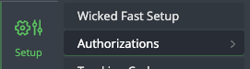
- Click Connect next to Shopify.

- Click "Connect Via The Shopify App Store
This will open the App Store for your Shopify Store allowing you to install the Wicked Reports App.
- From the Shopify App Store Listing, Click Open.
This will begin the install process and redirect you back to Wicked Reports
Note: Even though Shopify shows pricing in the top left, there is NO CHARGE for this app and if you are already a Wicked Reports, customer, please ignore it.
- When taken back to Wicked Reports Shopify Authorization, cilck "Complete Connection", then Yes, To Proceed

- Click "Yes, Proceed"

Great! Well done. With that being completed, our tracking code will be automatically added to your store and you'll see orders flowing into your Wicked Reports account by tomorrow morning.
Please continue to the next section, Steps to Manually Add Tracking To Your Checkout Process, to progress through your Shopify Setup Process.
Steps to Manually Add Tracking To Your Checkout Process
Adding our custom tracking code, on your Shopify Checkout Page, is crucial for attribution. However, Shopify does not currently allow us to update your Checkout automatically. Rather, it requires a manual process to add the custom tracking code.
- To install the custom tracking code, you’ll need to create a Custom Pixel and install the Custom Tracking Code onto your Checkout Page. This will enable us to properly track Checkout opt-in submissions.
- Please follow this guide for more details.
Once completed, your Checkout process will be fully configured for effective tracking. Continue to the next step to progress through your Shopify Setup Process.
Steps to Complete Your Subscription Setup*
*If you don't use subscriptions, then you can skip this section. If you have subscription orders that you need to track, then you may need to take some additional setup steps.
- Native
If you're using a Native Shopify APP for subscriptions, then no additional setup step is required. Your subscriptions will automatically track using Shopify's variant_ID. - Recharge
If you're using Recharge for subscriptions, and you are using their Product Subscription Plans, then additional setup steps are required. Please read here to learn How To Integrate Recharge for Shopify. - Alternative Platform
If you're using an alternative third-party platform to manage your subscriptions, then please reach out to our support team. We'll help you identify if any additional setup steps are required.
Once completed, your subscription setup will be fully configured. Continue to the next step to progress through your Shopify Setup Process.
Steps to Validate Your Revenue
Wicked Reports Gross Revenue often has a small variance when comparing to your Shopify Gross Revenue after completing your integration. However, verifying your revenue is important because it ensures your integration is set up and orders are flowing in properly. When verifying, we expect the data to be within a 3% margin due to these common causes:
- Time zone differences between your source system and Wicked Reports (EST).
- Not comparing Gross to Gross and/or differences in how these values are calculated.
- You have orders that are entered with back-dates, edited days later, or deleted days later.
To quickly validate your revenue, wait one day after the integration is authorized. After,
- Login to your Wicked Reports Account
- Go to the Funnel Vision Report
- In your filters, Select a 7 day date range
- In your attribution settings, select Gross Revenue
- Compare your accounts summary metric "Total Revenue" to Shopify's Gross Revenue
This test is simply designed to validate that orders are flowing through. It's not designed to be an exact match with Shopify's Dashboard. If the comparison is within 3%, then your system is correctly integrated and your Shopify Setup Process is completed! If your comparison has over a 3% discrepancy, then please reference the troubleshooting section below before moving forward.
Note: If you have multiple order management systems authorized, then you cannot compare the data directly from Shopify. Rather, you would have to sum up the Total Sales and Total Revenue from each OMS, and then compare.
What's Next?
- Historical Orders
Wicked Reports will now automatically retrieve your entire Shopify order history for cohort and customer lifetime value reporting. - When will I see my data?
Each morning, at about 12:00 pm UTC, Wicked Reports updates its database. This is when we will retrieve the previous day's Shopify orders, attribute them back to clicks, leads, and ad spend, and update your reports.
Troubleshooting
- Are you having difficulty trusting your Shopify Integration?
- Do you feel like something is off or missing?
- Are you experiencing one of these issues?
- My Gross revenue is different from what's in Shopify Dashboard.
- Primarily, differences in Shopify's Gross Revenue come from a difference in the way our systems calculate Gross Revenue.
- If you're still not confident in the accuracy of your order data within Wicked Reports, then run through this Revenue Validation Test.
- This test is designed to compare Shopify's Gross spreadsheet data with Wicked Reports Gross spreadsheet data. It gives a more "apples to apples" comparison and is highly effective at ensuring the Shopify/Wicked integration data is accurate. With this accuracy confirmed, you can rest easy knowing the differences between the two platforms is simply the way we calculate Gross.
- My Gross revenue is different from what's in Shopify Dashboard.
-
- My Net Revenue is different from what's in Shopify's Dashboard.
- Primarily, differences in Shopify's Net Revenue come from a difference in the way our systems calculate Net Revenue.
- Secondarily, Shopify's Net Revenue will show refunds for past orders in current reports (the date the refunds came in). However, Wicked Reports shows refunds for past orders in past reports (the date those orders were originally created.)
- That being said, if you're not confident in the accuracy of your data within Wicked Reports, then run through this Revenue Validation Test.
- This test is designed to compare Shopify's Gross spreadsheet data with Wicked Reports Gross spreadsheet data. It gives a more "apples to apples" comparison and is highly effective at ensuring the Shopify/Wicked integration data is accurate. With this accuracy confirmed, you can rest easy knowing the differences between the two platforms is simply the way we calculate Net.
- My Net Revenue is different from what's in Shopify's Dashboard.
-
- I have attributed leads and sales, but less than what Shopify attributes.
- If so, run through the Tracking Validation Routine.
- The Tracking Validation routine is a series of tests designed to validate your tracking setup; locate issues and bring your tracking up to the highest quality standard. If you're currently experiencing a tracking issue, then this routine is designed to find it.
- I have attributed leads and sales, but less than what Shopify attributes.
If you're still experiencing one of these issues after running through the tests, or if you're facing any other issues, then please contact our customer support team and we'll help get things squared away!
FAQs:
- How can I optimize my Shopify Tracking performance?
-
You can manually move the Wicked Reports tracking code directly before the </body> tag in the theme template.
- You can turn off lazyload for the Wicked Reports script in your Shopify Account
-
- How do I track a non-Shopify Checkout Page?
If you have a checkout page that allows our tracking script to be directly added to it or through GTM, then that's exactly what you should do. Otherwise, you'll need to set up a trackable Thank-You Page. Reach out to support if you'd like assistance. - I have orders coming into stores that aren't in Shopify. What should I do?
- If you notice orders from sources outside your Shopify store, ensure accurate tracking by authorizing additional order sources through the Setup->Authorizations menu.
- Only authorize sources that generate unique orders not already present in your Shopify store. If you exclusively use Stripe for processing Shopify orders, there's no need to authorize it separately; simply authorize Shopify for comprehensive tracking.
- Can I filter/block orders from coming into Wicked via Shopify Tag?
Yes. If you would like to do this, then please open a support ticket or email support@wickedreports.com with the tag(s) you'd like to filter with. We will then have our development team activate this for you.
Note: If you filter by tags, you're Shopify dashboard revenue will no longer align with the revenue in Wicked Reports. - Can I choose only to send in select orders via Shopify Tag?
Yes. If you would like to do this, then please open a support ticket or email support@wickedreports.com with the order tag(s) you'd like to have sent to Wicked. We will then have our development team activate this for you.
Note: If you only send in select orders by tags, you're Shopify dashboard revenue will no longer align with the revenue in Wicked Reports. - Will Wicked Reports report on the product information in my Shopify account?
Yes, we report off the product names in your Shopify store. Note: For this to work, you'll need to create products in Shopify and then have your Shopify checkout use those products as line items of the order. If you do not use product names, the product attribution and product reporting will not equal your daily sales
- Does Wicked Reports support Up-Sell Software with Shopify?
Yes, Wicked Reports seamlessly integrates with both CartHook and Zipify's One Click Upsell, ensuring accurate tracking and reporting of upsell orders. If you utilize a different upsell software, then please reach out to support@wickedreports.com for additional details. - Does Wicked Report work with my Subscription Software?
Please read Steps To Complete Your Subscription Setup. - How do I get my historical data attributed?
By default, this data will be attributed as Pre-Wicked. However, if you have tracking (or, attribution) data stored in their CRM from your past efforts, you can send it to Wicked Reports. We will then attribute your custom tracking data to Shopify sales & revenue. You can learn more here. -
Does the Shopify integration automatically pull in all contacts, even if no sale is associated?
Yes. Once connected, the Shopify integration will pull in all contacts from your Shopify account, including contacts that do not yet have an associated order or completed purchase. - How does Wicked Reports report the breakdown of Gross & Net for Shopify Sales compared to Shopify?
Shopify's Dashboard Formula:-
Gross Revenue = Product Price x Quantity Sold (excluding taxes, discounts, returns, etc...)
-
Net Revenue = Gross Revenue - Discounts - Returns/Refund
- Gross Revenue = Shopify's Gross Revenue + shipping + tax
- Net Revenue = Shopify's Gross Revenue - refunds - discounts + shipping + tax
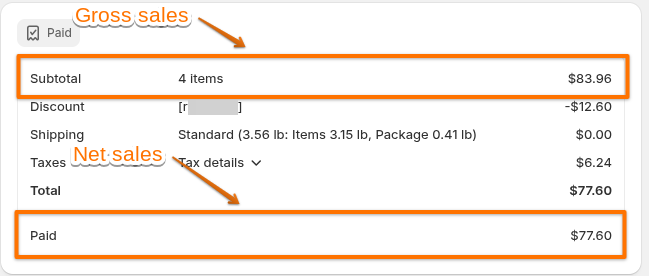
- Shopify's gross revenue figure is $83.96
- Wicked's gross revenue figure is $83.96 + $6.24 = $90.2
-