![wicked logo.webp]](https://help.wickedreports.com/hs-fs/hubfs/wicked%20logo.webp?height=40&name=wicked%20logo.webp)
On This Page
Introduction to FunnelVision Advanced Settings
This document is for Media Buyers, Strategists, and Brand Owners who already understand FunnelVision. It focuses on using Advanced Settings to move beyond generic performance reporting and shape analysis around clear business objectives such as:
-
Deciding what to scale, chill, or kill
-
Evaluating performance by strategy or initiative
-
Aligning reporting across teams and stakeholders
In FunnelVision, most of your time should be spent working from Saved Views. Advanced Settings allow you to configure those Views so they consistently answer the same question in the same way.
This article explains how Filters and Attribution Settings work together inside a View. Detailed, step-by-step instructions for each individual setting are covered in their dedicated “How To” articles, which are linked throughout.
Saved Views: The Container for Analysis
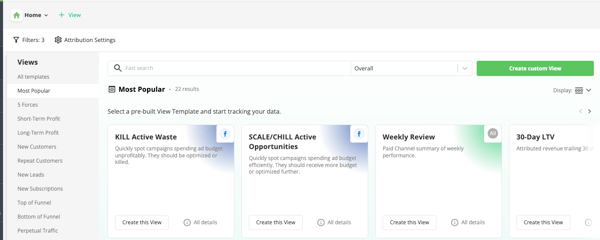
A Saved View is a saved configuration of:
-
Filters
-
Attribution Settings
-
Summary Metrics
-
Grid Columns
Views make analysis repeatable and shareable. Instead of rebuilding reports, teams rely on a small number of standardized Views for common workflows, such as:
-
Daily budget adjustments on live campaigns (Scale/Chill View and Kill Active Waste View)
-
Weekly performance reviews with stakeholders (Weekly Review View)
-
Monthly or lifecycle analysis focused on LTV (30-Day LTV View)
While a View includes several components, the logic of the analysis itself is defined by Filters and Attribution Settings. Everything else supports interpretation and presentation.
Learn more about views here:
How To Use Views
Filters and Attribution Settings
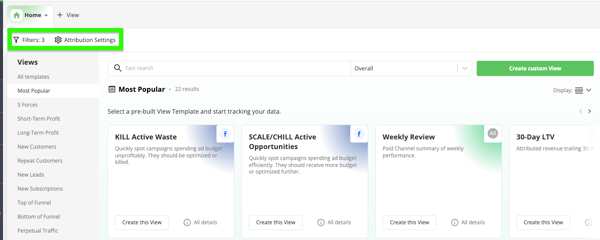
Filters and Attribution Settings are the primary tools used to model performance inside a View.
Filters determine which data is included, and Attribution Settings determine how that data is interpreted. Together, they define what the View is actually measuring. Most Advanced Settings work happens here.
Filters
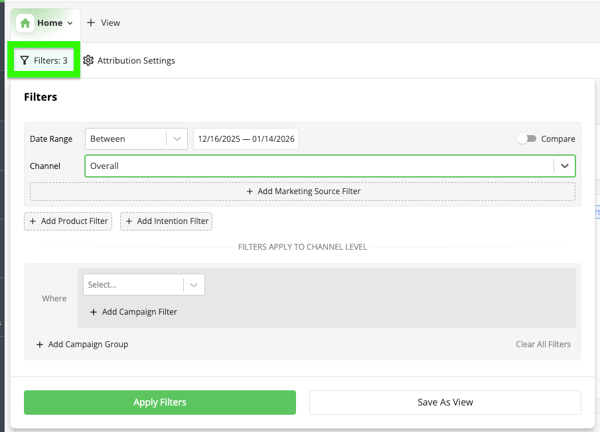
Filters determine which data is eligible to appear in a View. They are used to narrow analysis before any attribution logic is applied.
Common filtering dimensions include:
-
Date ranges
-
Channels
-
Marketing Source
-
Products
-
Campaign intentions
-
Performance thresholds
By layering filters, you can isolate specific slices of performance and remove noise before evaluating results.
For detailed filter behavior such as date logic and condition functions, see:
Read more: FunnelVision Filtering
Attribution Settings
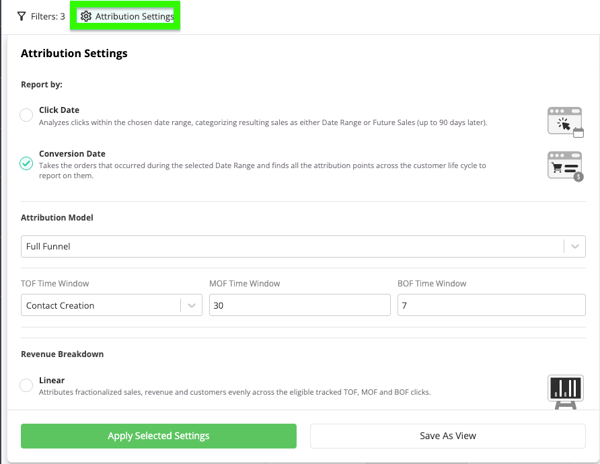
Attribution Settings define how clicks, conversions, revenue, and customers are represented within the filtered data.
These settings allow you to do things like:
-
Report based on conversion date or click date
-
Choose which touch-points receive credit
-
Adjust revenue configurations
Depending on the question you are trying to answer, changing Attribution Settings can significantly change how results are viewed.
For attribution models, time windows, and configuration details, see:
Read more: FunnelVision Attribution Settings
Final Tips for Customizing Your View


The Summary Metrics and Grid help you review and communicate the results of a View.
-
Summary Metrics highlight the most important KPIs at a glance
Read more: How to Customize the FunnelVision Summary Section -
The Grid provides detailed breakdowns for validation and diagnosis
Read more: How to Use the FunnelVision Grid
These elements help interpret the output of a View and are often customized to match the goal of the analysis. And, by designing Views around a clear question and then configuring Filters and Attribution Settings intentionally, FunnelVision becomes a consistent framework for decision-making rather than a collection of one-off reports.
Create a small set of core Views, use them consistently, and share them with your team. That’s where FunnelVision delivers its real value.